Yes, you can and should use WebP on your WordPress site. Modern WordPress supports it natively, so your two fastest paths are enabling a plugin that converts images automatically or uploading WebP files directly once your server supports them. Before you touch anything, confirm your host has Imagick or GD installed, and back up your media library. Older browsers still need a fallback, so plan for that too.
TL;DR:
- Most websites with large media libraries should use a CDN to handle WebP format conversion, reducing server CPU load during bulk jobs.
- Always back up your media files before bulk converting images to WebP to prevent data loss if issues arise.
- Use a staging environment to test WebP conversions on a small sample of images before applying changes to your entire library.
- WebP images are typically 30% smaller than JPEGs at similar quality, but older browsers still need a fallback mechanism like the
<picture>element.- Routine checks of your site’s performance and fallback functionality are crucial after enabling WebP to ensure compatibility and optimal loading times.
Table of Contents
- Priority checklist to enable WebP safely
- What WordPress does behind the scenes with WebP
- How to choose between automatic conversion, direct uploads, and CDN conversion
- Serving WebP with fallbacks that actually work
- A practical migration plan for your existing image library
- Setting WebP quality without losing visual fidelity
- Fixing the most common WebP problems in WordPress
- What years of WordPress rollouts have taught us about doing this safely
- Should you convert WebP yourself or bring in help?
- Let tcosi handle your WordPress image optimization
- Sources
- FAQ
Priority checklist to enable WebP safely
You don’t need a developer to get this right. Work through these steps in order, and you’ll have WebP running on your site within half an hour.
- Back up your media library and database first. If something goes sideways during conversion, you want a clean point to return to.
- Check your server for Imagick or GD support and confirm your PHP version meets your plugin’s requirements.
- Decide whether you want automatic conversion on upload through a plugin, or direct WebP uploads you control manually.
- Convert a small batch of test images, then check them visually and run them through a speed testing tool.
- Once you’re satisfied, bulk-convert the rest of your library, verify the results, and keep an eye on load times for a few days.
Pro Tip: Run your test batch on images that appear on your homepage, not buried in an old blog post. You’ll catch visual problems faster where traffic actually lands.
Most of the risk in this process comes from skipping step one. A backup takes five minutes and saves you from a much longer afternoon if a bulk conversion goes wrong.
What WordPress does behind the scenes with WebP
WordPress has built native WebP handling into its image pipeline for a while now, and understanding the mechanics helps you troubleshoot when something looks off.
At the center of it is the image_editor_output_format filter, which controls automatic format conversion, letting WordPress write sub-sized images, the various thumbnail and medium sizes it generates on upload, as WebP even when the original file is a JPEG. This is the mechanism most conversion plugins hook into rather than reinventing.
A few things worth knowing about how this plays out in practice:
- The filter affects sub-sizes generated during the upload process, not necessarily the original file you uploaded.
- Whether your original gets replaced or kept alongside the WebP versions depends on your plugin’s settings and your own choices.
- Regenerating thumbnails after you enable WebP support matters, because images already in your library won’t automatically get new sub-sizes without a bulk conversion step.
- Some newer WordPress versions also support a client-side media pipeline that can generate WebP or AVIF sub-sizes in the browser before the file ever reaches your server, which reduces server CPU load but still requires your server-side plugin to reconcile filenames and metadata correctly.
WebP files are typically smaller than comparable JPEG or PNG files at similar visual quality, according to Google’s WebP compression documentation, which also notes support for lossy and lossless modes, transparency, and animation. That’s the entire reason this format is worth the setup effort: smaller files without a visible quality hit.
Your original file’s fate matters more than most guides let on. If a plugin replaces originals outright and you later want to revert, you’re stuck unless you kept backups. If it keeps both, you’re using more disk space but you have a rollback path. Neither choice is wrong, but you should know which one your setup is making before you run a bulk job across thousands of images.
How to choose between automatic conversion, direct uploads, and CDN conversion
There isn’t one correct answer here. The right approach depends on your hosting, your media library size, and how much manual control you want.
Weigh your options against a few practical criteria:
- Hosting capacity: server-side conversion uses CPU and disk, so a budget shared host may struggle with a large bulk job while a CDN offloads that work entirely.
- Automatic conversion on upload versus needing a separate bulk tool for your existing library: most plugins handle new uploads automatically but require a distinct step for images you already have.
- Preserving originals: some tools let you keep the source file as a fallback, others replace it, which affects both your rollback options and your storage bill.
- AVIF support: a growing number of plugins will serve AVIF when the server supports it and fall back to WebP otherwise, worth checking if you want the smallest possible files.
- WooCommerce and ACF compatibility: product galleries and custom field image references can break if a plugin doesn’t update these references correctly during conversion.
- WP-CLI support: useful if you or your developer want to script bulk conversions rather than clicking through an admin screen for thousands of images.
The trade-offs come down to where the work happens. Local server conversion costs you CPU cycles and disk space, but keeps everything under your control and avoids sending images to a third party. Cloud-based conversion APIs shift that cost to a subscription fee and raise a mild privacy question, since your images pass through another company’s servers before they reach your visitor. Neither is a dealbreaker for most sites, but it’s worth knowing which trade-off you’re making.
Pro Tip: If your host limits PHP execution time, schedule bulk conversions during low-traffic hours so a large job doesn’t time out halfway through.
For a decision that fits most situations: a small blog with a modest media library does fine with a straightforward automatic conversion plugin. A media-heavy site, think a photography portfolio or a news outlet, benefits more from a CDN that handles format conversion at the edge, since it spares your origin server the repeated CPU cost. A WooCommerce store sits in between. You’ll want a plugin that explicitly documents WooCommerce compatibility, since product images touch more moving parts than a typical blog post.
Serving WebP with fallbacks that actually work
Getting WebP files onto your server is half the job. Serving them correctly to every visitor, regardless of browser, is the other half.
Content negotiation through the Accept header is one approach: your server checks what image formats a visitor’s browser can handle and serves WebP only to browsers that support it. This works well at the CDN or server level but requires configuration most shared hosts don’t expose to you directly.
The more portable method for a self-managed WordPress site is the HTML <picture> element with a <source type="image/webp"> tag, paired with a JPEG or PNG fallback inside the <img> tag. Most modern conversion plugins generate this markup automatically, which is one good reason to let a plugin handle the mechanics rather than hand-coding it across a large site.
A few things worth checking once fallbacks are in place:
- Confirm your CDN, if you use one, either serves WebP directly from origin or converts on the fly. The two approaches affect your cache keys differently, and a misconfigured cache can serve the wrong format to the wrong browser.
- Test the actual rendered page in Chrome, Firefox, Safari, and at least one mobile browser to confirm the fallback triggers correctly where WebP isn’t supported.
- Check your HTTP response headers to confirm the Content-Type matches the file actually being served, not just the file extension.
Browser support for WebP is broad at this point, covering Chrome, Edge, Firefox, and Safari 14 and later, but a small number of visitors will still hit an older browser or an email client rendering your page, so the fallback isn’t optional.
If your site relies on caching plugins, especially for WooCommerce, it’s worth understanding how caching plugin behavior interacts with format negotiation before you roll WebP out broadly, since a cache that doesn’t vary by Accept header can serve the wrong image to the wrong visitor.
A practical migration plan for your existing image library
Converting a library you’ve built over years is a different job than enabling WebP for new uploads. Treat it as a small project with its own checklist.
- Start on a staging copy of your site, confirm Imagick or GD is available, and check you have enough disk space if you plan to keep original files alongside new WebP versions.
- Convert a small sample, maybe twenty images from different pages, and check them visually for compression artifacts while noting the file size savings.
- Once the sample looks right, run the bulk conversion using your plugin’s bulk tool or, for larger libraries, a scripted WP-CLI command.
- After the bulk job finishes, run a metadata repair pass and use
wp media regenerateto rebuild thumbnails for any images that didn’t get proper sub-sizes. - Spot-check pages built with page builders and any WooCommerce product galleries to confirm image references didn’t break, then watch your site’s performance for a few days.
Pro Tip: Keep your originals for at least a week after a bulk conversion. If you spot a problem on page fifty of your product catalog, you’ll want a fast way back.
A QA checklist built for pre-launch testing works nearly as well for validating a bulk image migration, since the core discipline, checking pages methodically before you call the job done, is the same. If anything looks wrong after deploy, having kept your originals means rollback is a setting change, not a re-upload.
Setting WebP quality without losing visual fidelity
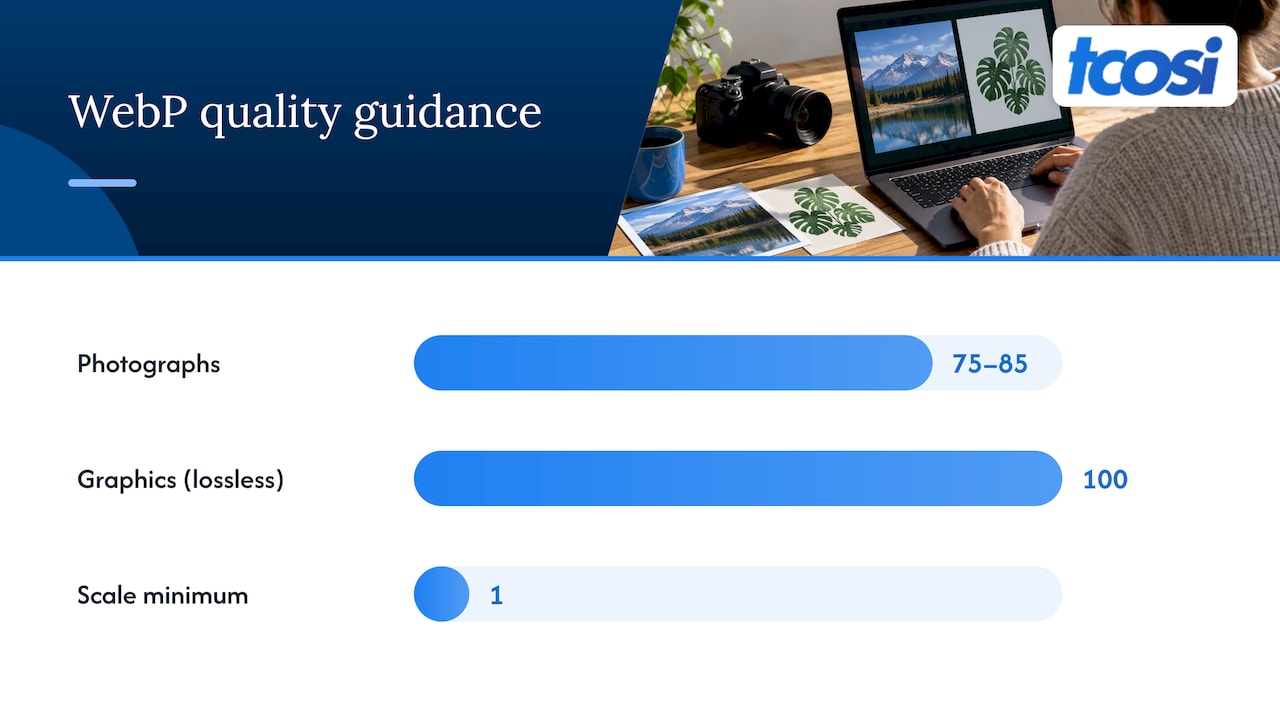
WordPress uses a 1 to 100 quality scale, and the WP_Image_Editor_Imagick::set_quality method is what controls it under the hood, handling lossy and lossless WebP differently. Lossless WebP, often used for graphics with transparency, tends to get encoded at 100% quality since there’s no compression trade-off to tune, while lossy WebP for photos benefits from a middle setting.
A reasonable baseline:
- For photographs, a quality setting in the 75 to 85 range usually holds visual fidelity while still delivering meaningful file size savings.
- For graphics with transparent backgrounds, like logos or icons, lossless encoding avoids the halo artifacts that lossy compression can introduce around hard edges.
- Test with a genuine A/B comparison: convert a handful of representative images at two or three quality settings, check them side by side, and note the file size difference each setting produces.
WebP’s compression advantage, with files smaller than comparable JPEG or PNG files at similar quality, is well documented by Google’s own WebP guidance, and that savings compounds across an entire page’s worth of images when you’re measuring load time.
If your server supports AVIF, it’s worth knowing that format often compresses even smaller than WebP for the same visual quality. A good setup serves AVIF where the browser supports it and falls back to WebP, then to JPEG or PNG as the last resort. You don’t need to chase every format to get most of the benefit, but it’s a detail worth checking in your plugin settings if you want the smallest possible files.
Fixing the most common WebP problems in WordPress
Most WebP issues in WordPress trace back to one of three causes: a missing server library, a broken thumbnail regeneration, or a plugin conflict. Here’s how to diagnose each quickly.
- Missing Imagick or GD: check your WordPress Site Health screen under Tools, or ask your host to confirm which image library is active and which PHP version you’re running.
- Broken thumbnails after conversion: run your plugin’s repair tool if it has one, or use
wp media regenerateto rebuild sub-sizes from the original file. - Page builder or theme conflicts: disable plugins one at a time on a staging copy to isolate which one is interfering, since format conversion plugins occasionally clash with image lazy-loading or gallery plugins.
- WooCommerce and ACF issues: after a bulk conversion, check that product gallery images and any ACF image fields still point to valid files, since these fields sometimes store direct URLs that don’t update automatically.
Most of these fixes take fifteen minutes once you know where to look. The exception is a page builder conflict, which can take longer to isolate if your site runs a lot of plugins, so budget extra time for that scenario specifically.
What years of WordPress rollouts have taught us about doing this safely
The rollouts that go smoothly almost always share one habit: everything happens on staging first. Running a bulk image conversion against a live production site, especially one that gets steady traffic, is asking for a support ticket you didn’t need.
A few practices worth adopting as standard policy, not just for this one project:
- Schedule bulk conversions during your lowest-traffic hours, even on staging, so you can review results without racing the clock.
- Keep original image files for at least a week after any bulk job, and only delete them once you’ve confirmed pages render correctly across your site.
- Add an image-optimization check to your regular maintenance routine rather than treating WebP as a one-time task, since new uploads need the same attention as your existing library.
- Watch your Core Web Vitals for a few days after rollout. A real drop in load time is the clearest sign the conversion worked as intended.
I’ve watched plenty of site owners treat WebP as a set-it-and-forget-it plugin install, and most of the time that’s fine. But the sites that avoid trouble are the ones that treat it as a small project with a beginning, a testing phase, and a check-in after launch, the same way you’d approach any other change to a site people rely on.
Should you convert WebP yourself or bring in help?
If you’re comfortable with backups and staging environments, converting to WebP yourself is entirely doable and a fine use of an afternoon. Where I’d bring in an agency is a large media library, a WooCommerce store, or a site where a broken product image costs you a sale. The time saved and the lower regression risk usually justify the cost.
— Tommy Cosimano
Let tcosi handle your WordPress image optimization

If reading through this checklist made you realize you’d rather not spend a weekend testing conversion settings, that’s exactly the kind of work we handle at tcosi. We build image optimization into the websites we design and into the ongoing support we provide, so your images stay fast without you having to babysit a plugin dashboard. Our Ongoing Maintenance plan, priced at $100 per month, covers plugin management and performance checks like this as part of the regular relationship, not as a one-off favor.
If you’re weighing a full site redesign alongside your image cleanup, our website pricing page lays out project options starting with the Essentials package at $1,200. Either way, you don’t have to figure out Imagick versions and quality settings on your own. Reach out through our contact page and we’ll walk through what your site actually needs.
Sources
For readers who want to go straight to the primary documentation:
- image_editor_output_format filter | WordPress Developer Resources
- Compression techniques | WebP | Google Developers
- Modern Image Formats (WebP Uploads) plugin page
FAQ
Does WordPress support WebP?
Yes, modern WordPress supports uploading and displaying WebP images natively, and it can also write WebP sub-sizes for images you upload through the image_editor_output_format filter. Your server still needs Imagick or GD installed for full conversion support to work correctly.
What are the disadvantages of WebP?
WebP requires server support through Imagick or GD, and older browsers or some legacy tools may not render it without a fallback in place. Converting an existing library also takes server resources and a testing pass to confirm thumbnails and page builder references still work correctly.
Is WebP really better than JPEG?
WebP files are typically about 30% smaller than comparable JPEG files at similar visual quality, based on Google’s WebP compression documentation. That said, JPEG remains a reliable fallback for the small number of browsers or tools that don’t support WebP.
How do I turn an image into WebP?
You can convert images by uploading them through a WordPress plugin that handles automatic conversion, using a bulk conversion tool for your existing library, or exporting them as WebP from an image editor before upload. Most plugin documentation, including the Modern Image Formats plugin, covers both automatic on-upload conversion and bulk tools for images already in your media library.