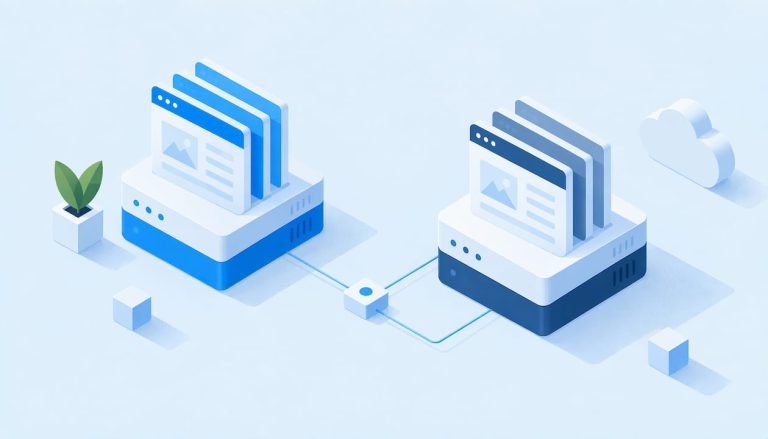
Back up both your files and your database, every time, and keep at least three copies of each on two different media with one copy offsite and immutable. Set your backup frequency to match your RPO, whether that is hourly for a store or weekly for a brochure site, and test the restore itself, not just the backup job.
TL;DR:
- Effective backups must include both files and databases, with at least three copies stored on two different media types, one of which is offsite and immutable.
- Backup frequency should match the site’s RPO, with transactional sites needing hourly backups and longer cycles acceptable for less active sites, plus at least 30 days of retention.
- Store backups in cloud object storage, host snapshots, and offline media, encrypt all copies, and keep credentials separate from site admin accounts to prevent ransomware threats.
- Use a combination of backup plugins, host snapshots, and manual exports for flexible recovery options, ensuring all methods are documented and regularly tested.
- Regular restore testing and updating procedures prevent backup failure surprises, emphasizing backups as ongoing maintenance rather than a one-time setup.
Table of Contents
- What to back up: files, database, and server-level dependencies
- Set RPO and RTO: choose backup frequency and retention that meet business needs
- Backup architecture and 3-2-1, plus immutable/offline copies
- Where to store backups: cloud object storage, host snapshots, and offline media
- How to implement backups: plugins, host snapshots, manual exports, and hybrid models
- Restore procedures and testing: runbooks, integrity checks, and avoiding reinfection
- Practical checklist and sample schedule (blog, business site, WooCommerce)
- How we build backups into every WordPress project we touch
- Backups are maintenance, not insurance you buy once
- Let us handle your backup strategy for you
- FAQ
- Sources
What to back up: files, database, and server-level dependencies
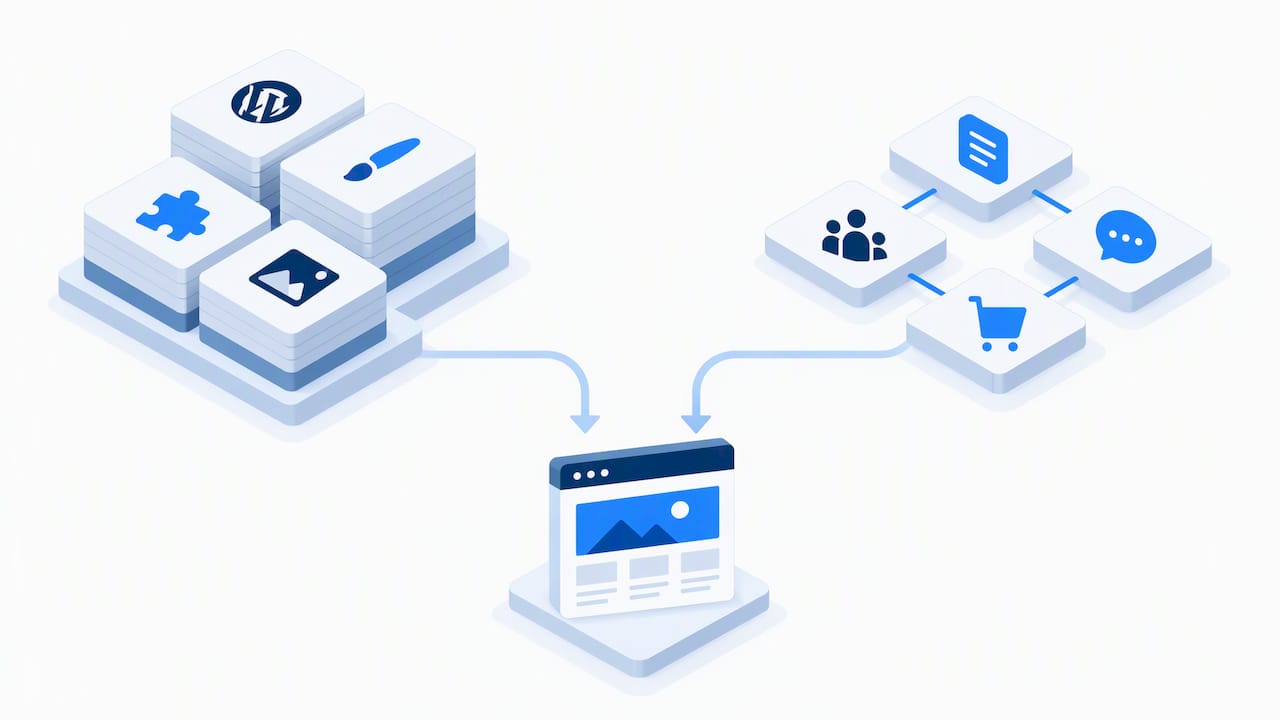
A WordPress site is really two things that have to come back together: your files and your database. We treat them as separate jobs because they fail separately.
Your files include your WordPress core, themes, plugins, and the wp-content directory where uploads live. Your database holds everything dynamic: posts, pages, comments, users, and if you run WooCommerce, every order and customer record. Skip one and the other is useless on its own; a database restore with no files gives you content and no site, and files with no database give you a site with nothing in it.
According to the WordPress.org backup documentation, your database should be backed up regularly and always before any upgrade, since it is where your actual content lives.
A full backup checklist includes:
- Core files and wp-content: themes, plugins, and uploaded media.
- wp-config.php and .htaccess: your site’s connection settings and server rewrite rules.
- The full database: posts, comments, users, and order data if applicable.
- Cron jobs and server configuration: scheduled tasks and Nginx or Apache rules that live outside WordPress itself.
- SSL certificates and off-site assets: anything stored in external object storage that your site depends on.
Leave out the server-level pieces and your restore might boot, but with broken permalinks, missing scheduled tasks, or a site that cannot see its own media library. Those are the details that turn a 20-minute restore into a half-day troubleshooting session.
Set RPO and RTO: choose backup frequency and retention that meet business needs
Two numbers should drive every backup decision you make: your recovery point objective, how much data you can afford to lose, and your recovery time objective, how long you can be down. These aren’t abstract concepts. A blog that posts twice a week can tolerate losing a day’s worth of edits. A WooCommerce store processing orders around the clock cannot afford to lose even an hour of transactions.
CISA’s guidance on business data backups recommends that transactional sites run hourly or continuous backups, paired with at least 30 days of retention so you have room to detect and investigate an infection before your clean copies age out.
A retention period of about a month or more is recommended for business sites, long enough to catch slow-moving malware before it contaminates every backup in your rotation, according to CISA.
A practical way to set your schedule:
- Estimate how much content or revenue changes per hour, day, and week.
- Set your RPO to the maximum loss you could absorb without serious harm.
- Pick a backup frequency that meets that RPO with margin, not exactly at the edge.
- Set retention at 30 days minimum, longer if storage cost allows.
- Revisit the schedule whenever traffic, order volume, or team size changes.
Cost and storage limits will push back on all of this. Hourly backups of a large WooCommerce database add up in storage fees fast. The fix is usually incremental backups between periodic full ones, which we cover next.
Backup architecture and 3-2-1, plus immutable/offline copies
The 3-2-1 rule is the backbone of a resilient setup: three copies of your data, on two different media types, with one copy offsite. For WordPress, that typically looks like your live site, a host-level snapshot, and an independent backup stored with a separate provider.
Ransomware has changed what “enough” means, though. Attackers increasingly search for and delete accessible backups before encrypting the rest of your data. CISA’s StopRansomware guide recommends keeping backups offline or in immutable storage, meaning they cannot be altered or deleted even if your main credentials are compromised.
A layered architecture gives you both speed and protection:
- Live site: your production environment, the thing you’re protecting.
- Host snapshot: fast rollback for small mistakes, like a bad plugin update.
- Independent offsite copy: stored with a different provider, for true disaster recovery.
- Immutable or air-gapped copy: untouchable by anyone who gets into your WordPress admin or hosting account.
Add the immutable or air-gapped layer once you’re handling customer data, payments, or anything you genuinely cannot afford to lose to an attacker who specifically targets backups.
Pro Tip: Store your offsite backup credentials somewhere separate from your WordPress admin, like a password manager with its own two-factor authentication, so a compromised site login can’t also take out your recovery copy.
Where to store backups: cloud object storage, host snapshots, and offline media
Where you store a backup matters as much as how often you make one. Each option carries real trade-offs, and CISA’s data backup options guide is a useful reference for weighing them.
- S3-compatible object storage: durable and supports versioning and object lock, which prevents deletion for a set period, a strong defense against ransomware according to the same CISA guidance.
- Managed host snapshots: convenient and fast for rollback, but tied to your hosting account. If that account is suspended or compromised, your snapshots may go with it.
- Offline or removable media: physically separate from any network, which makes it immune to remote attacks, but vulnerable to physical damage, loss, or theft if not stored and encrypted properly.
The WordPress.org advanced administration handbook makes a clear case for pairing host snapshots with independent offsite backups you control directly, since host-level backups alone leave you exposed to vendor lock-in.
Whichever destination you choose, encrypt the backup itself, use credentials separate from your main hosting or WordPress login, and apply least-privilege access so only the people and systems that need to reach your backups can.
How to implement backups: plugins, host snapshots, manual exports, and hybrid models
Most WordPress site owners reach for a plugin first, and that’s a reasonable starting point. A good backup plugin lets you schedule automatic backups, send them to a remote destination like cloud storage, and choose between full backups and incremental ones that only capture what changed since the last run. If you run WooCommerce, this comparison of backup plugins built for WooCommerce stores walks through features that matter for transactional sites specifically.
Beyond plugins, a few other approaches round out a solid setup:
- Host-level snapshots: fast and good for quick rollback after a bad update, often paired with managed database replication for low-downtime recovery.
- Manual exports:
mysqldumpfor the database andrsyncfor files remain reliable fallbacks, especially when documented as a written procedure your team can follow under pressure. - Hybrid approach: host snapshots for quick, everyday rollback, combined with independent offsite exports for true portability if your host or account becomes unavailable.
Manual methods aren’t about avoiding plugins. They’re about having a documented, plugin-independent process in your back pocket, since a plugin failure or conflict is one more thing that can go wrong at the exact moment you need a backup most.
Restore procedures and testing: runbooks, integrity checks, and avoiding reinfection

A backup you’ve never restored is a guess, not a safety net. CISA recommends conducting restore tests on a regular schedule and documenting actual recovery times so you can adjust your RTO and RPO based on reality, not assumptions.
A dependable restore sequence looks like this:
- Spin up an isolated staging environment, never your live site, for the first pass.
- Restore files first: core, themes, plugins, and wp-content.
- Restore the database second, matching it to the files you just restored.
- Check that permalinks, cron jobs, and server configuration came back correctly.
- Time the whole process and compare it against your target RTO.
- Only then promote the restore to production.
If you’re restoring after a known compromise, don’t skip straight to recovery. CISA’s guidance on responding to ransomware notes that restoring without forensic validation can reintroduce the same compromise, so scan your backup and confirm it predates the infection before bringing it back online.
Pro Tip: Keep your restore steps written down as a runbook, not in someone’s memory. The person who built your backup system might not be the one restoring it at 2 AM.
Practical checklist and sample schedule (blog, business site, WooCommerce)
Here’s a plug-and-play starting point you can adapt to your own site:
- Back up files and database together, never one without the other.
- Store at least one copy offsite and one immutable or offline.
- Keep 30+ days of retention, longer for sites handling transactions.
- Store credentials separately from your WordPress admin login.
- Always back up before any plugin, theme, or core update.
Before any update or deployment, take a manual backup regardless of your schedule. It’s the cheapest insurance you’ll ever buy against a plugin conflict that takes your site down mid-afternoon.
How we build backups into every WordPress project we touch
Every site we manage gets restore testing in staging before anything touches production, along with a pre-deploy backup step built into our update process. We keep written runbooks rather than relying on memory, which matters when a restore happens under pressure. Our guides on staging environments and plugin management cover the workflows we use to keep updates safe.
Backups are maintenance, not insurance you buy once
The biggest mistake we see is treating backups as a box checked during setup rather than ongoing work. A backup system needs a line item in your budget and a recurring slot on your calendar, the same as hosting or security updates.
Speed, cost, and retention pull against each other for small teams, and that’s fine. Pick the trade-off that fits your RPO, then schedule a restore drill this quarter. Untested backups are a belief, not a plan.
— Tommy Cosimano
Let us handle your backup strategy for you
If building and testing a backup system isn’t where you want to spend your time, our Ongoing Maintenance plan at $100 per month includes plugin and security management alongside content updates, so recovery planning stays someone’s actual job instead of a task that slips. We also offer standalone Plugin & Security Management for $100 per month if that’s the piece you need most.

If ransomware protection and managed IT support beyond WordPress itself are part of what you’re looking for, NEXTmsp offers managed cybersecurity services worth a look. For your WordPress site specifically, reach out through our contact page and we’ll walk through what a dependable backup setup looks like for your situation.
FAQ
What is the best way to backup a WordPress site?
The most reliable approach combines both files and database backups, stored following the 3-2-1 rule: three copies, two media types, one offsite. Add an immutable or offline copy for ransomware resistance, and test the restore regularly rather than assuming the backup works.
What is the best WordPress backup solution?
There isn’t one universal answer since it depends on your site type and RPO, but a hybrid setup works well for most sites: a backup plugin or host snapshot for quick rollback, paired with an independent offsite copy you control directly. WordPress.org’s own backup documentation recommends this pairing specifically to avoid vendor lock-in.
How do I backup my WordPress?
Back up your database using a tool like mysqldump or a plugin, and back up your files including wp-content, wp-config.php, and .htaccess using rsync or a plugin’s file backup feature. Schedule both to run automatically and send a copy offsite.
How can I back up my WordPress site locally?
You can export your database manually with mysqldump and copy your files directly from your server using rsync or an FTP client, storing them on an external drive. Encrypt that local copy and keep it physically separate from your main workstation, since local-only backups don’t protect against theft, fire, or hardware failure on their own.
Sources
- Secure your business: Back up business data (CISA)
- Backups – Advanced Administration Handbook (WordPress.org)