If you do nothing else this week, do three things: install an SEO plugin, enable HTTPS, and submit a sitemap to Google Search Console. Those moves make your site crawlable and measurable. From there, you work through staged tasks covering technical setup, content, performance, and monitoring, so by the end you have baseline metrics, optimized core pages, and a site Google can actually read.
TL;DR:
- Installing an SEO plugin and submitting a sitemap are essential first steps, but ensuring your hosting is fast and HTTPS is enabled improves crawlability and trust.
- Setting up structured data and canonical tags helps avoid duplicate content issues and unlocks rich results, boosting your click-through rates over time.
- Regularly auditing your site for broken links, indexing problems, and speed issues, especially on core pages, maintains visibility and search ranking momentum.
- Technical fixes like redirects, noindex tags, and schema validation should be checked immediately after launch to prevent weeks of lost visibility.
- Ongoing monitoring with Search Console and Google Analytics ensures you catch and fix issues early, maintaining steady SEO progress over time.
Table of Contents
- 1. Set the foundation with hosting, theme, and site settings
- 2. Install and connect your core SEO tools
- 3. Lock down the technical details that control indexing
- 4. Tighten up titles, headings, images, and internal links
- 5. Speed things up for Core Web Vitals
- 6. Keep measuring and maintaining after launch
- 7. Run this pre-launch checklist before you go live
- 8. Why this checklist reflects real WordPress work
- My honest view on doing it yourself
- How tcosi handles this checklist for clients
- Bookmarks worth keeping while you work
- Sources
- FAQ
1. Set the foundation with hosting, theme, and site settings
Before you touch SEO plugins or meta tags, your platform needs to be solid. I’ve seen too many sites where someone optimized content for months while sitting on slow hosting or a theme full of bloated code. Fix the foundation first.
Reliable hosting and SSL matter because a slow server drags down every page, and Google’s own technical requirements call for HTTPS as part of appearing well in search results, according to Google Search Essentials. A fast, responsive theme matters just as much. If you plan to customize code, use a child theme so updates to the parent theme don’t wipe out your work.
Here’s what to check before building anything on top:
- Enable SSL and confirm every page loads under https, not http.
- Set permalinks to “Post name” under Settings for clean, readable URLs.
- Check Settings > Reading to confirm “Discourage search engines” is unchecked.
- Pick one preferred domain version (www or non-www) and stick with it.
- Set up automated backups and a staging environment before major changes.
A staging site lets you test redesigns, plugin updates, and structural changes without risking the live site. It’s a small investment of time that saves you from a much bigger headache later.
2. Install and connect your core SEO tools
Once the foundation is steady, it’s time to wire up the tools that actually run your SEO day to day.
- Install an SEO plugin and turn on its sitemap and schema modules. WordPress.org’s own documentation recommends using canonical tags and sitemaps as part of basic SEO setup, and a good plugin handles both automatically, per WordPress.
- Confirm your sitemap URL loads correctly, then submit it in Google Search Console and check its status under the Sitemaps report.
- Connect GA4 to your site and set up event tracking for the actions that matter: form submissions, calls, purchases.
- Capture baseline numbers now: organic sessions, indexed pages, and your top five landing pages. You’ll need these later to measure progress.
- Confirm automated backups are running and that you have a staging workflow to test future plugin or theme updates safely.
WordPress has included a built-in sitemap at /wp-sitemap.xml since version 5.5, but a dedicated plugin gives you more control, including the ability to exclude low-value archive pages, as noted in Google’s Search Central documentation.
3. Lock down the technical details that control indexing
This is where a lot of small business sites quietly lose visibility. Technical SEO isn’t glamorous, but it decides whether Google can find and trust your pages in the first place.
- Generate your XML sitemap and exclude tag archives or date archives when they add no value for readers.
- Use page-level noindex tags instead of robots.txt disallow rules when you want to keep a page out of search results.
- Set rel=canonical tags on any pages with duplicate or overlapping content.
- Audit old URLs and set 301 redirects for anything that moved or was consolidated.
- Add structured data for content types that qualify, like articles, products, FAQs, or local business info.
Google’s own guidance warns against blocking resources like JavaScript or CSS through robots.txt, since that can prevent pages from rendering properly even if they’re technically indexed, according to Google Search Central. Noindex tags give you the same control without that risk.
Once your schema is in place, test it with Google’s Rich Results Test and the URL Inspection tool in Search Console. Structured data doesn’t move rankings on its own, but it unlocks rich results and can lift your click-through rate, which Google’s Search Essentials documentation points to directly. A practical reference on schema types is worth bookmarking if you want to see which formats tend to earn those rich results.
Pro Tip: Run the URL Inspection tool on your five most important pages right after launch. It’s the fastest way to catch an accidental noindex tag before it costs you weeks of visibility.
If you’re cleaning up an older site, our breakdown of common WordPress SEO mistakes covers the errors that show up most often in audits.
4. Tighten up titles, headings, images, and internal links
With the technical layer handled, you can focus on the parts readers and search engines both see directly: your words, your images, and how your pages connect to each other.
- Write a unique title and meta description for every core page, keeping titles under roughly 60 characters and descriptions under about 155.
- Use exactly one H1 per page, then organize the rest of the content with clear H2 and H3 subheadings.
- Rename image files descriptively, write real alt text, compress file sizes, and use srcset so browsers load the right size for each device.
- Prefer WebP format for images where your plugin or theme supports it, since it keeps quality high at a smaller file size.
- Link each new post to three to five related pages using descriptive anchor text, built around pillar pages that group related content.
- Add a visible author byline with real credentials, and link out to authoritative sources when you reference data or claims.
Good internal linking does double duty: it helps readers find related content, and it helps search engines understand how your pages relate to each other, a point both Google and WordPress.org’s documentation make directly. If you want a visual sense of how this looks in practice, our piece on SEO-friendly page layouts shows a few working patterns, and our guide to site structure goes deeper on building around pillar pages.
5. Speed things up for Core Web Vitals
Page speed is a user experience problem before it’s an SEO problem, but it affects both. Start by measuring, not guessing.
- Run your site through PageSpeed Insights and the Core Web Vitals report in Search Console to see where you stand on LCP, CLS, and INP.
- Add a caching layer and put a CDN in front of your media files to cut load times for visitors far from your server.
- Compress images and offload large files rather than serving them straight from your WordPress uploads folder.
- Defer non-critical JavaScript, inline critical CSS, and preconnect to the external domains your page depends on.
- Reduce the number of third-party scripts running on key landing pages, since each one adds its own loading delay.
- Test on mobile first, since that’s where layout shift problems show up most, then recheck your scores after each fix.
Small sites often see the biggest Core Web Vitals gains from image optimization and caching alone, before any deeper code work, according to Google’s Core Web Vitals documentation. That’s good news if you’re working with limited development time. For a deeper look at image handling specifically, see our guide on WordPress image optimization.
6. Keep measuring and maintaining after launch
SEO isn’t a one-time setup. It’s an ongoing habit, and the sites that keep climbing are the ones that keep checking their own work.
- Check Search Console weekly for indexing issues and search performance trends, and use GA4 for behavior and conversion data.
- Set a handful of baseline KPIs early so later reports actually mean something.
- Schedule regular technical audits for crawl errors, broken links, and indexing problems, plus content audits for pages losing traffic.
- Look for “page two” keywords you’re almost ranking for, since those often need just a small content update to break through.
- Keep a simple change log of site edits so you can connect traffic drops or gains to something you actually did.
Our audit playbook walks through a repeatable version of this process if you want a schedule to follow rather than building one from scratch.
7. Run this pre-launch checklist before you go live
Before you publish a new site or push a major redesign live, run through this short list in order.
- Confirm “Discourage search engines” is unchecked, then submit your sitemap and request indexing for your top priority pages.
- Check every redirect is working, remove placeholder or “lorem ipsum” pages, and run a scan for broken links.
- Validate your schema markup, test mobile usability, and check page speed on your main landing pages.
- Confirm analytics, conversion goals, and event tracking are live and recording real data.
Skipping any one of these is how sites end up invisible for weeks after launch, with no clear reason why.
8. Why this checklist reflects real WordPress work
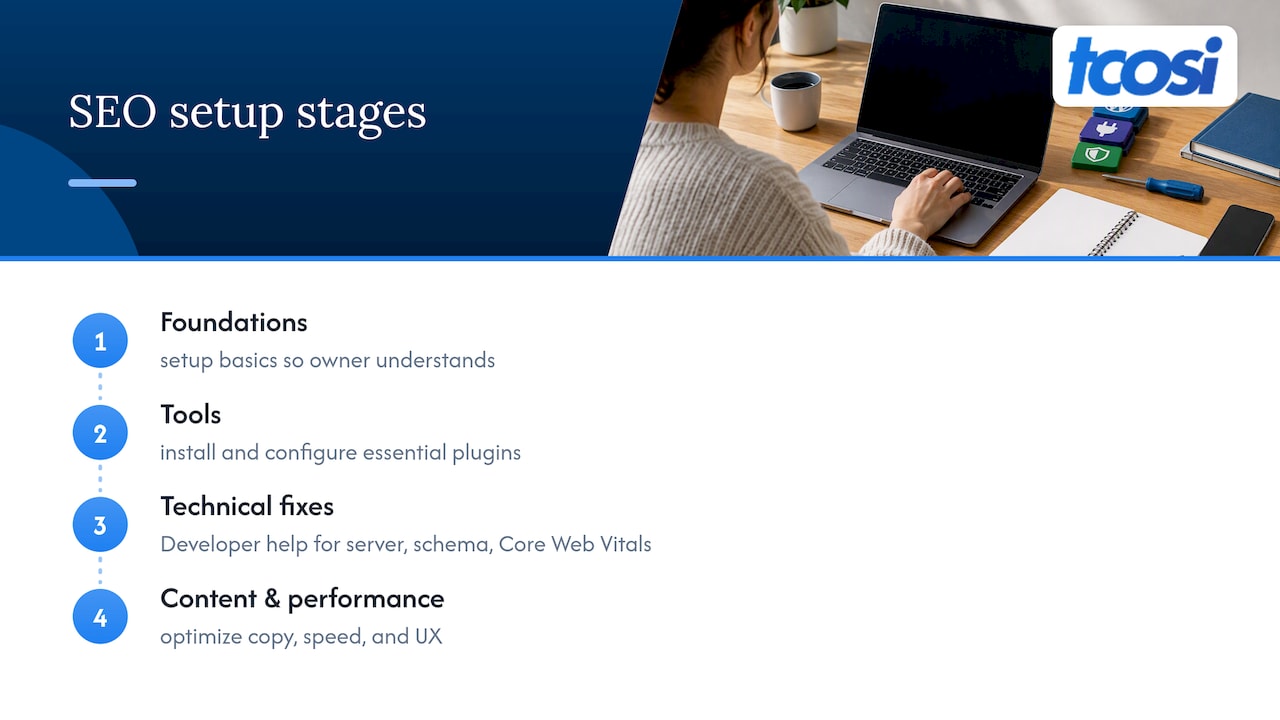
I’m Tommy Cosimano, and I built tcosi around a simple idea: website work should be clear enough that a business owner understands exactly what’s happening and why. This checklist draws on the same staged approach I use when I set up SEO for a client’s WordPress site, starting with foundations, then tools, then technical fixes, then content and performance.
Some of this you can absolutely do yourself with a free weekend and some patience. Other parts, especially anything touching server configuration, schema, or Core Web Vitals, tend to go faster with a developer who’s done it before.
My honest view on doing it yourself
Most of this checklist is DIY-friendly: plugin setup, metadata, image alt text, internal links. Hand off anything touching server config, schema markup, or a sudden drop in indexed pages. A site-wide performance collapse or a sharp traffic loss is a signal to get help fast, not to keep experimenting.
— Tommy Cosimano
How tcosi handles this checklist for clients

Running through this checklist on your own is doable, but it takes real hours, and a mistake in robots.txt or schema can cost you weeks of visibility while you figure out what went wrong. I built tcosi’s SEO work around removing that risk for business owners who would rather spend their time running their business.
Here’s what that looks like in practice:
- SEO Setup gets your plugin, sitemap, schema, and Search Console connections configured correctly from day one.
- On-Page SEO covers titles, meta descriptions, headings, and internal linking across your core pages.
- Ongoing Maintenance keeps plugins updated, backups running, and your site secure with ongoing monthly service, so the technical side never becomes your problem.
If you’d rather hand this off than chase it yourself, take a look at tcosi’s website pricing to see how these services fit together, or reach out directly and I’ll walk you through what your site actually needs.
Bookmarks worth keeping while you work
- Google Search Essentials: Google’s own technical requirements and best practices.
- WordPress: foundational setup recommendations straight from WordPress.
- PageSpeed Insights: free tool for checking Core Web Vitals on any URL.
- Rich Results Test: confirms your structured data is eligible for rich results.
Sources
FAQ
What is the most important first step in a WordPress SEO checklist?
Enabling HTTPS and installing a maintained SEO plugin come first, since both affect how Google crawls and trusts your site from day one. Everything else, from sitemaps to schema, builds on that foundation.
Do I need both an SEO plugin and Google Search Console?
Yes, they serve different purposes. The plugin handles on-site tasks like sitemaps, meta tags, and schema, while Search Console shows you how Google actually sees and indexes your pages, per Google Search Central.
How often should I audit my WordPress site for SEO issues?
A full technical and content audit every few months catches most problems before they cost you traffic, with lighter weekly checks of Search Console in between. Our audit guide walks through a repeatable schedule.
Does structured data actually improve my search rankings?
Not directly. Structured data unlocks rich results and can improve click-through rate, which Google’s Search Essentials documentation confirms, but it isn’t itself a ranking factor.
Should I use robots.txt or noindex tags to hide low-value pages?
Use noindex tags on individual pages rather than blocking them in robots.txt, since robots.txt can accidentally block resources Google needs to render your site properly, according to Google Search Central.