
Fix hosting and TTFB first, turn on page caching, and optimize your images. Those three moves usually deliver the biggest visible gains, and doing them in that order matters because a slow server undercuts everything you do on the frontend afterward. Aim for a Time To First Byte under several hundred milliseconds, ideally under two hundred, then work down toward better Largest Contentful Paint and Cumulative Layout Shift scores.
TL;DR:
- Improving hosting response time by upgrading to PHP 8.2, enabling OPcache, moving to SSD storage, and leveraging server-level caching unlocks the largest speed gains.
- Using page caching, compressing images, setting explicit image sizes, and preloading critical images typically halve load times without server configuration changes.
- Object caching with Redis or Memcached becomes essential for dynamic pages with logged-in users or e-commerce features to achieve sub-500 millisecond TTFB.
- Combining a CDN with cache stacking reduces latency and optimizes images at the edge, especially important for media-heavy websites using page builders.
- Conducting regular diagnostic tests, such as Lighthouse and Query Monitor, guides targeted fixes and helps maintain Web Vital scores over time.
Table of Contents
- Quick Wins: No-Code, High-ROI Fixes You Can Implement Today
- Why Does Hosting Set Your Site’s Speed Ceiling?
- How Do Page Cache, Object Cache, and CDNs Work Together?
- What’s the Right Way to Handle Images and the LCP Element?
- How Do You Audit Themes and Plugins for Bloat?
- What Backend Tuning Actually Moves the Needle?
- How Do You Fix Render-Blocking CSS and JavaScript?
- How Should You Measure and Monitor Speed Improvements?
- Should You Lazy-Load Iframes and Videos Too?
- Should You Fix This Yourself or Bring in a Developer?
- Get a Speed Audit Instead of Guessing What’s Slow
- Sources
- FAQ
Quick Wins: No-Code, High-ROI Fixes You Can Implement Today
You don’t need a developer to make your site noticeably faster this afternoon. Most of the fixes below take fifteen minutes each, and you can do them from the WordPress dashboard.
Here’s the order I’d tackle them in:
- Install a caching plugin if your host doesn’t already provide server-level caching, and turn on both page cache and browser caching.
- Compress every image on your site and convert JPEGs and PNGs to WebP where your theme supports it.
- Set explicit width and height attributes on images, and use
srcsetso phones don’t download desktop-sized files. - Deactivate and delete plugins you’re not using. Dormant plugins still load files on every page.
- Confirm HTTPS is active, then check that your host has HTTP/2 enabled along with Brotli or Gzip compression.
- Preload your Largest Contentful Paint (LCP) image and turn on native lazy loading for anything below the fold.
None of these require touching a server configuration file, and together they often cut load time by half on a site that has never been optimized.
Pro Tip: Before you install a caching plugin, check your hosting dashboard. Many managed WordPress hosts already run server-level caching, and stacking a plugin cache on top can create conflicts instead of speed gains.
Why Does Hosting Set Your Site’s Speed Ceiling?
Time To First Byte, or TTFB, measures how long the server takes to start responding once a browser requests a page. A good TTFB is under two hundred milliseconds; anything notably higher means your server is the bottleneck no plugin can fix.
This is the part most WordPress guides bury under image tips, but it deserves top billing. After reviewing more than 100 performance audits, one WordPress developer’s writeup found that hosting is the single factor that determines a site’s speed ceiling, and fixing it first produces the largest measurable gains. Polish the frontend on a slow host and you’re rearranging furniture in a room that’s still on fire.
A few server-level changes make an outsized difference:
- Run PHP 8.2 or newer. Each major PHP version tends to bring real execution speed improvements over the last.
- Confirm OPcache is enabled. It caches compiled PHP so the server doesn’t re-parse code on every request.
- Move to SSD or NVMe storage if you’re still on spinning disks. NVMe drives read and write data dramatically faster than older solid-state drives.
- Ask whether your host runs Nginx FastCGI cache or Varnish at the server level, since server-side caching outperforms plugin-only caching for high-traffic pages.
Not every hosting tier suits every site. Shared hosting is fine for a small brochure site with light traffic, but it puts you on a server with hundreds of other accounts competing for the same resources. Managed WordPress hosting adds server-level caching, staging environments, and WordPress-specific tuning, which is usually worth the premium once your site does real business. VPS hosting gives you dedicated resources without the full cost of a dedicated server, and it’s the right move once traffic or WooCommerce checkout volume starts to strain shared hosting. Dedicated servers make sense mainly for large stores or high-traffic membership sites.
The bottom line: according to VeloPress’s layered optimization model, server response time and object caching are essential for any database-heavy site, and no amount of frontend tuning replaces a slow server. If you’re weighing a host migration, a WordPress migration checklist walks through how to move without losing uptime or SEO rankings.
How Do Page Cache, Object Cache, and CDNs Work Together?
Caching isn’t one setting. It’s a stack of four distinct layers, and skipping one leaves performance on the table even if the others are dialed in.
- Page cache stores a fully rendered HTML version of a page so WordPress doesn’t rebuild it from PHP and database queries on every visit. This is the single biggest immediate win available to most sites, according to AcceleratorWP’s breakdown of the caching stack.
- Object cache (usually Redis or Memcached) stores the results of expensive database queries in memory, which matters most on WooCommerce stores, membership sites, or anything with logged-in users seeing personalized content that page cache can’t touch.
- OPcache caches compiled PHP code at the server level, cutting execution time on every request.
- Browser cache tells visitors’ browsers to store static assets locally so repeat visits skip the download entirely.
If your site runs WooCommerce or a membership plugin, object caching stops being optional. Dynamic, logged-in pages bypass page cache by design, so Redis is often the only way to get those pages under 500 milliseconds TTFB, based on findings from AcceleratorWP on database-heavy sites.
A CDN adds a fifth layer by serving static files, and sometimes full pages, from servers physically closer to each visitor. Most CDNs also offer image optimization at the edge, so you get format conversion and resizing without touching your media library. Pair a CDN with your caching plugin or host’s cache rather than choosing one or the other. If you’re on Elementor or another page builder, this comparison of caching plugins for Elementor sites is worth a look, since builder-heavy sites tend to generate more CSS and JS than a lean theme.
Pro Tip: Check for cache HITs by opening your browser’s developer tools, loading a page twice, and looking for an x-cache: HIT header in the response. A MISS on the second load usually means a plugin conflict, a logged-in session bypassing cache, or a cache rule excluding that page type.
What’s the Right Way to Handle Images and the LCP Element?
Images are usually the heaviest assets on a WordPress page, and they’re also where Core Web Vitals problems most often start. Here’s the process that actually holds up:
- Upload at display size. A 4,000-pixel photo displayed in an 800-pixel content column wastes bandwidth on every single visit.
- Compress at roughly 80% quality. This is the sweet spot where file size drops sharply and visible quality loss stays minimal, per the image guidance in VeloPress’s speed optimization guide.
- Convert to WebP or AVIF where your theme and plugins support it, since both formats produce smaller files than JPEG or PNG at equivalent quality.
- Add
srcsetandsizesattributes so a phone downloads a phone-sized image instead of the same file a desktop gets. - Set explicit width and height attributes on every image tag. This reserves layout space before the image loads, which is the single most common fix for a bad CLS score.
- Lazy-load everything below the fold, but never the LCP image. Lazy loading your hero image delays the exact element Google measures for Largest Contentful Paint. Use
fetchpriority="high"and eager loading on that one image instead, and consider preloading it directly.
That last rule trips up more sites than any other single image mistake. A hero image set to lazy load can add a full second or more to LCP simply because the browser waits to even start the request until it scrolls into view, and that delay shows up directly in your PageSpeed Insights score.
An image CDN, or a feature like Cloudflare’s automatic format negotiation, handles steps three and four automatically by detecting the visitor’s browser and serving WebP or AVIF without you managing multiple file versions. A full walkthrough of resizing, compression, and CDN delivery lives in this image optimization guide, which is worth bookmarking if you manage a media-heavy site.
How Do You Audit Themes and Plugins for Bloat?
Every plugin you install adds database queries, JavaScript, and CSS, and most of them load that weight on every page whether it’s needed there or not. A contact form plugin loading its scripts on your blog posts is a common, invisible drag on speed.
Start with Query Monitor. This free diagnostic plugin shows exactly which plugins run expensive database queries and which ones load scripts and styles on pages where they serve no purpose, a technique recommended in the 100-plus audit writeup referenced earlier.
Run through this checklist:
- Install Query Monitor on a staging copy of your site and load your five busiest pages.
- Flag any plugin generating more than a handful of queries per page load.
- For plugins that load assets site-wide, check their settings for a “disable on pages where not used” option, or replace them with a lighter alternative.
- Temporarily switch to a default WordPress theme and re-test. If load time drops sharply, your theme itself is the bottleneck, not just your plugins.
- Remove plugins you haven’t used in the last six months rather than just deactivating them, since some continue running scheduled tasks even when inactive.
If a theme or page builder turns out to be the real problem, your options are a leaner theme, a rebuild using native WordPress blocks, or a targeted retemplate of your worst-performing pages. Test every plugin change on staging before pushing it live. A staging site walkthrough covers how to set that up safely, and this plugin management guide covers a staging-first workflow for ongoing updates.
What Backend Tuning Actually Moves the Needle?
Once you’ve handled hosting, caching, and images, the remaining gains live deeper in the stack, and most of them need host-level access or a developer’s help.
Start with the database. Years of post revisions, spam comments, and expired transients bloat the wp_options table and slow every query that touches it. Run OPTIMIZE TABLE on your core tables periodically, and audit autoloaded options specifically. Autoloaded data gets pulled into memory on every single page load regardless of whether that page needs it, so a bloated autoload table taxes every request on your site.
Redis or Memcached handles object caching, and setting it up typically means:
- Confirming your host supports Redis (most managed WordPress hosts do, many shared hosts don’t).
- Installing an object cache plugin that connects WordPress to Redis.
- Testing before and after with Query Monitor to confirm cached queries actually drop.
Server tuning goes further still. Adjusting Nginx worker processes and keepalive settings, and confirming Brotli compression is active at the server level, are changes your host’s support team can usually make on request. If your site is outgrowing a single server, that’s the point to talk about managed scaling or a multi-server setup, not before.
Pro Tip: Check your OPcache settings for opcache.memory_consumption and opcache.max_accelerated_files. Undersized OPcache memory forces the server to keep re-compiling PHP files it should be holding in cache, quietly erasing the gain you just paid a host upgrade for.
How Do You Fix Render-Blocking CSS and JavaScript?
Every stylesheet and script that loads before your page can paint anything is render-blocking, and Core Web Vitals penalizes that delay directly through Total Blocking Time and LCP.
The fix that matters most: extract the CSS your above-the-fold content actually needs, called critical CSS, and inline it directly in the page’s <head>. Defer everything else so it loads after the initial paint. Most caching plugins with performance add-ons can generate critical CSS automatically per template, which saves you from writing it by hand for every page type.
JavaScript needs the same triage:
- Defer or async-load any script that isn’t needed for the first paint.
- Set a performance budget, a hard cap on total JS weight per page, and treat any new plugin that blows past it as a problem to solve before launch, not after.
- Audit every third-party script, from analytics tags to chat widgets, and remove anything not earning its weight in conversions or insight.
Fonts deserve their own line item. Every custom font adds a network request and a render delay. Self-host your fonts instead of pulling them from a third-party server, limit yourself to one or two font families, and set font-display: swap so text renders in a fallback font instantly rather than staying invisible while the custom font downloads. That single CSS property eliminates the flash of invisible text that quietly tanks perceived speed on font-heavy sites.
How Should You Measure and Monitor Speed Improvements?
Testing without a plan produces noise, not answers. Here’s a repeatable process:
- Test on staging first, then confirm the same results on production, since server environments can differ.
- Run PageSpeed Insights and Lighthouse on your five highest-traffic pages, not just your homepage.
- Record which specific audits fail, whether that’s LCP, CLS, or Total Blocking Time, and fix those before re-testing.
- Check field data (real visitor data from Chrome’s user experience report) alongside lab data, since lab scores don’t always match what real visitors experience.
- Make one change at a time and re-test, so you know exactly which fix produced which gain.
The PageSpeed Matters guide recommends this exact approach: test key pages, log failing audits, and prioritize whatever moves your Core Web Vitals scores most.
| Metric | What it measures | Good target |
|---|---|---|
| TTFB | Server response time | Under several hundred milliseconds |
| LCP | Time to render largest visible element | Better Largest Contentful Paint scores |
| CLS | Visual stability during load | Better Cumulative Layout Shift scores |
| INP | Responsiveness to user interaction | Under several hundred milliseconds |
| Cache hit rate | Percentage of requests served from cache | High percentage |
Track these numbers monthly, not just after a redesign. Regressions creep in quietly, usually through a new plugin or an unoptimized image someone uploaded without thinking.
Should You Lazy-Load Iframes and Videos Too?
Images aren’t the only embeds worth deferring. Embedded YouTube videos, Google Maps iframes, and social media widgets often carry more page weight than every image on the page combined, and most WordPress sites load them immediately whether a visitor scrolls that far or not.
Modern browsers support native lazy loading on iframes using the same loading="lazy" attribute you’d use on an image tag. Add it to any embedded map, video, or third-party widget sitting below the fold, and the browser won’t request that resource until it’s about to enter the viewport.
YouTube embeds deserve special attention. A standard embed loads YouTube’s full player script on page load, even if the visitor never clicks play. Facade techniques, showing a static thumbnail that only loads the real player on click, cut that weight to nearly nothing until someone actually wants to watch. Several caching and performance plugins now build this in automatically.
Google Maps embeds carry the same problem. A single embedded map can pull in several hundred kilobytes of JavaScript before a visitor even scrolls to the contact section. Lazy loading it, or replacing it with a static map image that links out to Google Maps on click, solves this without losing the feature.
The same logic that keeps you from lazy-loading your LCP image applies here in reverse: if a video or map sits above the fold and matters for that first impression, don’t lazy-load it. Everything else below the fold should defer by default.
Should You Fix This Yourself or Bring in a Developer?
Handling your own WordPress speed optimization makes sense for the fixes that don’t touch server configuration: compressing images, cleaning up unused plugins, and installing a caching plugin. Any site owner comfortable poking around the WordPress dashboard can knock out most of the quick wins in an afternoon.
Where it gets harder is everything past that layer. Server tuning, object cache setup, structural plugin loading decisions, and full host migrations carry real risk if you get them wrong, and a botched migration can take a site offline for hours. That’s the point where hiring makes more sense than experimenting on a live site.
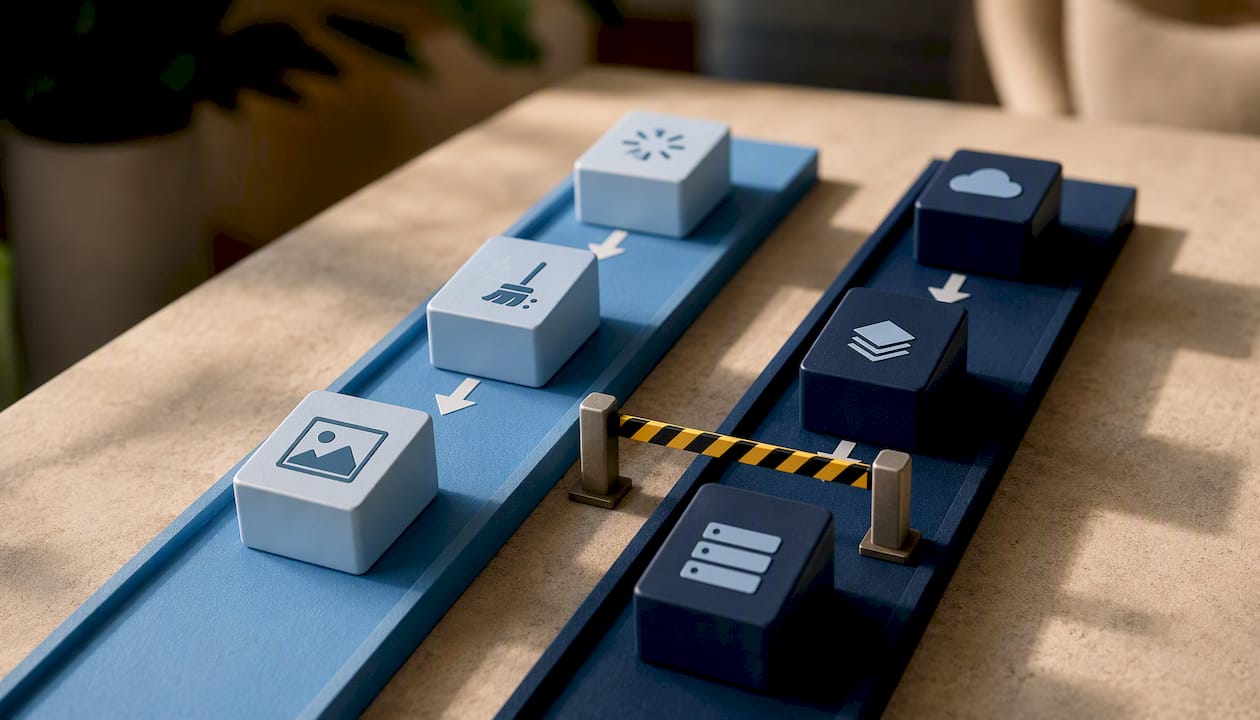
At tcosi, the approach starts with diagnostics, not guesswork: audit the site to find the actual bottleneck, prioritize fixes by how much speed they’ll buy versus how much work they take, implement the changes on staging first, then monitor the results against real Core Web Vitals data. Ongoing monitoring matters more than a one-time fix, since performance degrades over time as new plugins, content, and traffic patterns accumulate.
The gap between the two approaches usually isn’t skill. It’s time and risk tolerance. If you’ve got a weekend and a staging environment, tackle the quick wins yourself. If you’re running a business and a slow checkout page is costing you customers right now, that’s a different calculation entirely.
— Tommy Cosimano
Get a Speed Audit Instead of Guessing What’s Slow
tcosi’s diagnostic-first approach means you get a prioritized list of fixes instead of a generic checklist you have to interpret yourself. That’s the real difference between a DIY tutorial and hiring help: clarity on exactly what’s slowing your specific site down, and in what order to fix it.

A performance audit through tcosi starts with testing your actual pages, not a generic template, and comes back with a diagnostic report, a prioritized fix list ranked by impact, and an estimate for the work involved. From there, services range from hosting migration and server-level tuning to ongoing website maintenance that catches regressions before they cost you traffic or conversions. Website packages are listed with published pricing, including the Essentials, Growth, and Premium tiers, so you know what you’re signing up for before any conversation starts. If your site has never had a real diagnostic, that’s the place to start. Reach out through the pricing page to get a straight answer on what’s slowing your site down and what it would take to fix it.
Sources
Run PageSpeed Insights and Lighthouse (built into Chrome DevTools) as your first diagnostic step on any slow page. WordPress’s own performance optimization documentation covers server, caching, and database guidance in more technical depth than most third-party guides. For plugin-level diagnostics, install Query Monitor directly from the WordPress plugin repository. For object caching, look into a Redis-compatible object cache plugin once your host confirms Redis support. The VeloPress speed optimization guide and PageSpeed Matters guide both go deeper into layer-by-layer troubleshooting if you want to keep learning past this article.
- WordPress Developer — Performance optimization
- VeloPress — WordPress speed optimisation guide
- PageSpeed Matters — ultimate WordPress speed guide
FAQ
Which Plugin Is Best for WordPress Speed Optimization?
There’s no single best plugin for every site. The right choice depends on whether your host already provides server-level caching, whether you run WooCommerce, and whether you’re using a page builder like Elementor, which often benefits from a caching plugin built to handle its extra CSS and JS.
How Can You Speed Up a WordPress Site Without Plugins?
Server-level changes deliver the biggest gains without installing anything: upgrading to PHP 8.2 or newer, enabling OPcache, confirming Brotli or Gzip compression is active, and requesting server-side caching like Nginx FastCGI cache from your host.
Is LiteSpeed Cache Better Than WP-Optimize?
They solve different problems. LiteSpeed Cache is a full caching solution built for LiteSpeed servers and offers page cache, image optimization, and CDN integration in one plugin, while WP-Optimize focuses mainly on database cleanup and basic caching. Which one fits depends on your hosting stack and whether you need database maintenance or full-stack caching.
Why Does WordPress Run So Slowly?
The most common causes are slow hosting with high TTFB, missing or misconfigured caching, unoptimized images, and plugin bloat from tools loading assets on pages that don’t need them. Running a diagnostic with PageSpeed Insights and Query Monitor usually identifies which of these is the actual bottleneck on your site.
How Much Does a WordPress Speed Audit Cost?
Pricing depends on the scope of work involved. Current pricing for website packages and services is listed on tcosi’s pricing page.