
The three reliable ways to set up WordPress redirects are through a plugin like Redirection, server-level rules on Apache or Nginx, or code using WordPress’s built-in functions. For any permanent move, use a permanent 301 or 308 redirect at the server level when you can. Save temporary codes for changes you plan to undo, and always confirm the fix with Search Console or your plugin’s logs.
TL;DR:
- Using server-level redirects (301 or 308) provides the fastest and most reliable moves, especially for high-traffic pages or permanent changes.
- The Redirection plugin offers an accessible way for non-developers to manage and monitor redirects within WordPress, supporting regex, import/export, and 404 logging.
- For large migrations, planning and mapping all URLs beforehand ensures direct, high-priority redirects and helps avoid chains or loops that harm SEO.
- Test redirects immediately after setup using tools like Search Console, crawl analyzers, and logs to identify lingering errors or chains before they impact rankings.
- For high-scale redirects, server rules or CDN configurations outperform plugins by reducing load and latency, with the redirect map serving as the core strategy.
Table of Contents
- Plugin, server, or code: how to pick the right method
- Setting up redirects with the Redirection plugin
- Redirects at the server level for speed and reliability
- Writing safe redirects in WordPress code
- Planning redirects before a migration or permalink change
- How to confirm your redirects are actually working
- Fixing the redirect problems that trip up most sites
- An agency’s checklist for handling redirects the right way
- What most redirect advice gets backward
- How tcosi handles redirects during migrations and maintenance
- Where this guidance comes from
- Sources
- FAQ
Plugin, server, or code: how to pick the right method
Each method trades off ease of use against control and speed, so the right choice depends on your comfort level and how many redirects you’re managing.
A plugin like Redirection gives you a friendly interface, no code required, and built-in tracking. It’s the right call for site owners who need to manage anywhere from a handful to thousands of redirects without touching server files. Server-level rules run faster because they skip WordPress entirely, which matters for high-traffic pages or when you’re chasing every bit of page speed. Code-based redirects give developers precise, conditional logic, useful when a redirect depends on something dynamic like a logged-in user or a query parameter.
Here’s how I think about the decision:
- Plugin: best for non-developers, ongoing management, and sites where the person doing the redirecting doesn’t have hosting access.
- Server-level: best for permanent, high-traffic redirects where speed matters and you have access to .htaccess, Nginx config, or a CDN dashboard.
- Code: best for developers building conditional logic into a theme or plugin, such as redirecting based on user role or form submission.
Hosting access is the real gatekeeper here. If you’re on shared hosting without file access, the plugin route is often your only practical option, and that’s fine. Redirection covers the vast majority of use cases well.
Setting up redirects with the Redirection plugin
Once installed and activated, Redirection lives under Tools → Redirection in your WordPress dashboard. It’s built specifically to manage 301 redirects inside WordPress without requiring any Apache or Nginx knowledge, and it supports regex, import and export, and 404 monitoring out of the box.
Here’s the basic workflow:
- Go to Tools → Redirection and click “Add New.”
- Enter the old path in the “Source URL” field (for example, /old-page/) and the destination in “Target URL.”
- Choose “301 – Moved Permanently” from the action type dropdown unless the change is temporary.
- Save the redirect and test it in a private browser window.
- For bulk changes, use the regex option to match URL patterns, or handle query parameters when redirecting URLs that include tracking codes or filters.
- Use the import and export tools to move redirects between sites or bulk-upload a CSV during a migration.
- Turn on 404 logging under the plugin’s settings to catch broken links you didn’t know existed.
The logging feature is where Redirection earns its keep beyond convenience. It records hit counts, referrers, and browser data for every 404 on your site, which means you can group errors and prioritize the ones actually sending you traffic instead of chasing every dead link equally. For larger sites, Redirection can also export your rules to server-level formats, which helps once you’ve outgrown the plugin-only approach and want the performance benefit of handling redirects before WordPress loads.
Pro Tip: Check your Redirection logs weekly for the first month after a big change. That’s usually when you’ll spot the 404s with real referrers worth fixing first.
Redirects at the server level for speed and reliability
Server-side redirects are the fastest option because the request never reaches WordPress. They’re also what Google recommends for permanent moves, since permanent redirects act as a canonicalization signal for indexing and don’t cause a loss of ranking value.
On Apache, you’ll add rules to your site’s .htaccess file:
- Open .htaccess in your site’s root directory and back it up before making any changes.
- Add your rule above the
# BEGIN WordPressblock, since placement matters and rules after that block may not run as expected. - Use a line like
Redirect 301 /old-path/ https://example.com/new-path/and save the file. - Test the URL in an incognito window to confirm the redirect fires correctly.
On Nginx, you’d add a return 301 https://example.com/new-path/; inside the relevant server block. A return is generally preferred over rewrite for simple one-to-one redirects because it’s more predictable and easier to read later.
If you’re running a CDN like Cloudflare, page rules or edge redirects can handle this even closer to the visitor, which shaves off latency and keeps your origin server’s load down. That’s a solid option when you’re redirecting high-traffic pages during a migration and want the fastest possible response time.
Pro Tip: Always test your site immediately after editing .htaccess. A single misplaced character can take the whole site down, so keep a backup open in another tab until you’ve confirmed everything loads.
Writing safe redirects in WordPress code
For developers, WordPress gives you two functions to redirect programmatically: wp_redirect() and wp_safe_redirect(). The safe version validates the destination against a list of allowed hosts before handing off to wp_redirect, which protects against open-redirect vulnerabilities where an attacker tricks your site into sending visitors somewhere malicious.
A few things to keep in mind:
- Always follow with exit. Neither function stops PHP execution automatically, so code after the call will still run unless you add
exit;right after it. - Set the status code explicitly. wp_redirect defaults to a 302, a temporary redirect, so for a permanent move you need to pass 301 as the second argument.
- Hook into template_redirect for conditional logic. Checking
is_page()oris_404()inside that hook is the standard pattern for redirecting based on the current request. - Validate user-supplied URLs. Use wp_validate_redirect() and wp_sanitize_redirect() any time the destination comes from user input, form data, or a query string.
Pro Tip: If you’re building a redirect that might later be removed, call nocache_headers() before the redirect fires. That keeps browsers from caching a temporary fix as if it were permanent.
Planning redirects before a migration or permalink change
The biggest mistake I see during migrations isn’t a bad redirect, it’s no plan at all. Before you touch a single URL, build a complete old-to-new URL map and store it in a spreadsheet or database. Google’s own migration guidance recommends exactly this: map everything first, then execute.
A few priorities to work through:
- Rank pages by inbound links and traffic first. Your highest-value URLs deserve the most careful redirect and the first check after launch.
- Use permanent redirects for permanent moves. Google treats 301 and 308 as permanent signals; reserve 302 or 307 only for changes you intend to reverse.
- Avoid redirect chains. Every extra hop between the old URL and the final destination adds latency and risk, so point directly at the final target whenever possible.
- Plan for a crawling spike. Search engines tend to crawl more aggressively right after a migration, so check that your hosting can handle the load.
If you’re working through a larger site restructure, our migration checklist and four-phase content migration guide walk through this in more depth, including how site architecture decisions affect which pages need redirects in the first place, a topic we cover further in our site structure guide.
Pro Tip: Build your redirect map in a spreadsheet with columns for old URL, new URL, priority, and status. It becomes your single source of truth during a hectic launch week.
How to confirm your redirects are actually working
A redirect that looks right in your browser can still be wrong from a crawler’s perspective, so verification is its own step, not an afterthought.
- Open Search Console and use URL Inspection to confirm Google sees the redirect and is indexing the new URL correctly.
- Check the Coverage report a few days after launch to catch any pages still returning errors instead of redirecting.
- Review your Redirection plugin logs or server logs for lingering 404s, and sort by hit count to fix the ones with real traffic first.
- Crawl your site with a tool built for finding broken links and redirect chains, so you catch multi-hop redirects before they slow things down.
- Watch your analytics for traffic drops on redirected pages in the weeks following the change, and set a recurring check, weekly at first, then monthly, to catch slow regressions.
This is where a lot of the value from the earlier planning work pays off. If you built a proper redirect map before launch, this step is mostly confirmation. If you didn’t, this is where you’ll find out the hard way. Our staging site guide covers how to test redirects safely before they ever touch your live environment.
Fixing the redirect problems that trip up most sites
Most redirect issues fall into a short list of repeat offenders, and most have quick fixes.
- Redirect chains: point the source directly at the final destination instead of letting it bounce through two or three old redirects first.
- Redirect loops: check for a source and target pointing at each other, often introduced when a permalink structure changes twice.
- Open redirects: validate any redirect destination that comes from user input, and use wp_safe_redirect() instead of wp_redirect() for that exact reason.
- Stale caching: clear browser and CDN caches after changing a redirect’s status code, since old responses can stick around longer than expected.
- Wrong status codes: if a “temporary” 302 has been live for months, it’s probably permanent. Switch it to a 301 so search engines stop re-checking it.
An agency’s checklist for handling redirects the right way
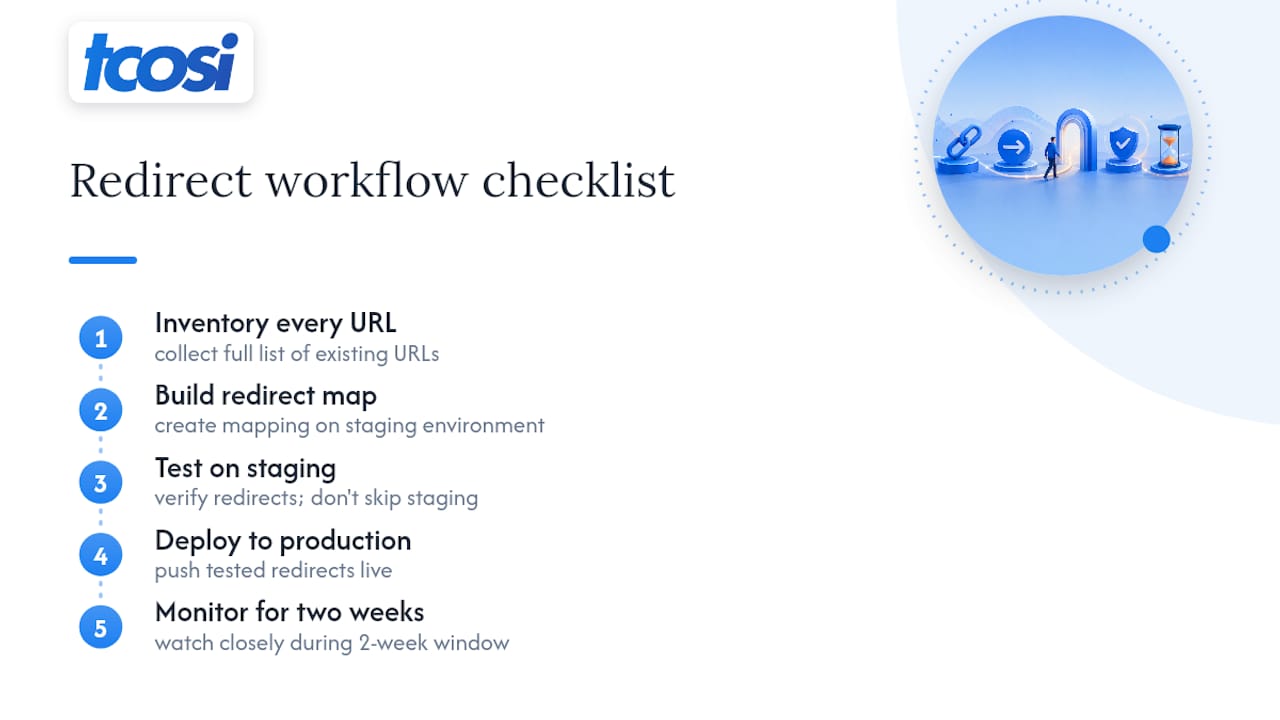
After years of running WordPress migrations, I’ve settled on a simple sequence: inventory every URL, build the redirect map on staging, test it there, deploy to production, then watch closely for a two-week monitoring window before calling it done. Skipping the staging step is the single most common cause of launch-day surprises.
Site owners tend to benefit from hiring outside help when the URL count runs into the thousands, when a domain change is involved, when hosting access is limited, or when the team simply doesn’t have the time to sit through a monitoring window properly. Redirects are one of those tasks that look simple until the scale or the stakes go up, and that’s usually when a second set of eyes is worth it.
What most redirect advice gets backward
Most guides treat redirects as a one-time technical chore: set the rule, confirm the 301 fires, move on. That’s backward. The setup is the easy part. The part that actually protects your rankings is the two or three weeks after launch, when you’re supposed to be watching logs, checking Search Console, and fixing the redirects that turned out to be wrong.
I’d also push back on the instinct to reach for a plugin for everything. Plugins are the right tool for ongoing, ad hoc redirect management, but if you’re doing a full domain migration with thousands of URLs, server-level rules will serve your site faster and with less overhead once they’re in place. The plugin is where you build and test the map. The server is often where the final version should live.
If you take one thing from this guide, prioritize the redirect map over the redirect method. A well-built old-to-new URL map, ranked by traffic and inbound links, makes almost any implementation method work. A missing map makes even the best plugin or the cleanest .htaccess rule a guessing game.
— Tommy Cosimano
How tcosi handles redirects during migrations and maintenance

I built tcosi around the idea that technical work like redirects shouldn’t be a mystery to the business owner paying for it. When we handle a migration or redesign, redirect mapping is part of the process, not an afterthought bolted on after launch.
A few ways this shows up in our work:
- We build the URL map before touching a live site, as part of any redesign or migration project.
- Our Ongoing Maintenance plan, at $100 per month, includes Plugin & Security Management so redirect rules and plugins stay current after launch.
- SEO setup services cover the technical groundwork that keeps redirected pages indexed correctly.
If you’re planning a migration or just inherited a site full of broken links, take a look at our website pricing or reach out through our contact page to talk through what your site needs.
Where this guidance comes from
This guide draws on Redirection’s plugin documentation, the WordPress Developer Reference for wp_redirect and wp_safe_redirect, and Google Search Central’s redirect guidance, alongside a migration-focused SEO checklist for planning larger URL changes.
Sources
- Redirects and Google Search | Google Search Central
- Redirection – WordPress plugin
- wp_redirect() | WordPress Developer Reference
FAQ
Why is my WordPress website redirecting?
Your site is likely redirecting because of a rule set in a plugin like Redirection, a line in your .htaccess file, or code using wp_redirect somewhere in a theme or plugin. Check Tools → Redirection first, since that’s the most common source of unexpected redirects on a WordPress site.
Where do I find redirects in WordPress?
Redirects created through a plugin appear under Tools → Redirection in your dashboard. Server-level redirects live in your .htaccess file on Apache or your server block config on Nginx, and code-based redirects are usually found in a theme’s functions.php file or a custom plugin.
What’s the difference between 301 and 302 redirects?
A 301 redirect tells browsers and search engines that a page has permanently moved, while a 302 signals a temporary change that may be reversed. Google recommends using 301 or 308 for permanent moves so indexing signals stay consistent, and reserving 302 or 307 for changes you plan to undo.
How do I stop my website from redirecting to other sites?
Check your Redirection plugin settings and .htaccess file for a rule pointing to an external domain, since this is often the result of a misconfigured redirect or, less commonly, a compromised plugin. If you can’t find the source, use wp_safe_redirect() in any custom code, since it validates destinations and blocks unauthorized external redirects by design.