
A website content migration is the process of moving pages, media, and metadata from one site or structure to another without losing what already functions. A successful one means your priority URLs redirect correctly, your SEO signals carry over intact, and tools like Google Search Console and GA4 keep tracking traffic without a gap. Get those three right, and everything else is detail work.
TL;DR:
- A precise 1:1 redirect map and thorough testing of all priority URLs are crucial to prevent traffic loss during migration, especially when URLs change significantly.
- Building a comprehensive content inventory from multiple sources helps prioritize pages for updates, redirects, or retirement based on traffic and backlink importance.
- Running full audits in staging, including canonical tags, structured data, internal links, and multimedia, ensures issues are caught before launch.
- Monitoring server responses, traffic, and crawl errors for 90 days post-launch is essential for identifying problems that may require timely fixes or rollback decisions.
- Engaging a professional agency can reduce risks by ensuring proper staging, redirect testing, and analytics setup, especially for large or complex sites.
Table of Contents
- What Is a Website Content Migration, and Why Does It Matter?
- How Do You Structure a Content Migration Plan by Phase?
- Building the Content Inventory: Your Single Source of Truth
- How Do You Map URLs and Plan Redirects Correctly?
- What Should You Test on Staging Before You Launch?
- What Belongs on Your SEO Technical Checklist?
- What Do You Check the Moment the New Site Goes Live?
- How Long Should You Monitor After Launch, and What Triggers a Rollback?
- What’s a Realistic Timeline and Checklist for Your Team?
- Notes From Practitioners Who’ve Run These Migrations
- What Backup Plan Protects You if the Migration Goes Wrong?
- How Do You Handle Images, Videos, and PDFs During Migration?
- Who Needs to Know What During a Migration?
- What Changes When You Switch CMS Platforms?
- How Do You Optimize Speed and Performance After Launch?
- Should You Run Your Migration In-House or Hire Help?
- Get Your Migration Done Right the First Time
- Sources
- FAQ
What Is a Website Content Migration, and Why Does It Matter?
Not every migration carries the same risk. A replatform (moving from one CMS to another) tests your redirect logic and template mapping. A redesign on the same platform usually preserves URLs, so the risk sits mostly in content and metadata changes. A domain change is the highest-stakes version. It touches every backlink pointing at your site. A URL-structure change, like moving from flat URLs to a folder-based hierarchy, needs the most rigorous 1:1 mapping because every single address shifts at once.
Content mapping matters differently depending on which of these you’re running. A redesign might need a light audit. A domain move needs a full one. Expect some ranking volatility in the first two to four weeks after launch regardless of type. That’s normal, and it’s why a seo migration plan with defined checkpoints matters more than blind optimism.
How Do You Structure a Content Migration Plan by Phase?
Break the project into four phases, each with its own owner and deliverable. This is the backbone of any content migration plan, and skipping a phase is usually where things go wrong.
- Pre-launch: content lead builds the inventory, SEO lead sets traffic and ranking benchmarks.
- Staging/test: developer builds the new environment, SEO lead runs crawl validation and QA.
- Launch: developer flips redirects and DNS, content lead confirms priority pages are live and correct.
- Post-launch: analytics owner monitors Search Console, crawl logs, and conversion data for 30 to 90 days.
Each phase needs a single accountable person, not a committee. When three people think someone else is checking redirects, nobody checks redirects. Write the owner’s name next to each task before you start, not after something breaks.
Building the Content Inventory: Your Single Source of Truth
Every solid migration starts with a spreadsheet, not a to-do list. A proper content inventory records the URL, page title, organic traffic, conversions, current owner, indexability status, backlink count, template type, and the action you plan to take. Skip any of those fields and you’ll end up guessing during launch week, which is exactly when you can’t afford to guess.
Build it by combining a full crawler export (Screaming Frog or Sitebulb both work) with your XML sitemap, Google Analytics data, your CMS export, and Search Console’s performance report. HubSpot’s own content inventory guide recommends reconciling all four sources rather than trusting any single export, since crawlers miss orphaned pages and analytics miss pages with zero traffic.
Once you have the data, apply decision rules:
- Keep as-is: high traffic, high conversions, no changes needed.
- Update: relevant content, but stale copy or outdated design.
- Consolidate: multiple thin pages covering the same topic.
- Redirect: outdated or duplicate pages with real backlink value.
- Retire: no traffic, no backlinks, no business reason to exist.
Prioritize your manual review time on pages with real traffic or backlinks first. Low-value pages can be batch-processed or handed to automation later.
Pro Tip: Sort your inventory by backlink count before you sort by traffic. A page with modest traffic but forty referring domains can do more damage to your rankings if its redirect breaks than a high-traffic page with none.
How Do You Map URLs and Plan Redirects Correctly?
The old-to-new URL map is the single most important document in the entire project. Missing or incorrect redirects are the leading cause of traffic loss after a migration, according to Search Engine Land’s migration guide, and the fix is almost always the same: better mapping, done earlier.
- Map every URL 1:1 wherever a direct equivalent exists on the new site.
- When two or more pages merge into one, redirect each to the single best topical match, not to the homepage.
- Use permanent server-side redirects (301, or 308 for methods that must be preserved) rather than client-side or meta-refresh redirects.
- Never chain redirects. A URL that hops through two or three hops before landing loses link equity and slows crawlers down.
- After launch, crawl the entire redirect map and manually spot-check the URLs with the most backlinks.
That last step catches problems automated tools miss. A redirect can return a 301 status code and still point to the wrong page, which no crawl report will flag as an error. Only a human glance catches that.
What Should You Test on Staging Before You Launch?
Staging is where mistakes get cheap. Set it up either password-protected or with a sitewide noindex tag, and only lift that restriction for Googlebot if you specifically need search engines to test-crawl before launch, per Pantheon’s migration checklist.
Run the same audits on staging that you’d run on production:
- Crawl the entire site and check canonical tags point to the correct, live URLs.
- Validate hreflang tags if you run multiple language or regional versions.
- Check structured data with a schema validator on every major template type.
- Confirm internal links point to new URLs, not old ones scheduled for retirement.
- Test every form, image path, and video embed for broken references.
A staging environment that mirrors production is the only reliable way to catch these issues before they go live, because sampling a handful of pages by hand will always miss something a full crawl catches.
Pro Tip: Test your five highest-traffic pages manually, by eye, even after the automated crawl comes back clean. Crawlers check code. They don’t check whether the layout looks broken on mobile.
What Belongs on Your SEO Technical Checklist?
Preserving rankings during a migration comes down to a short list of technical checks, repeated consistently across every template.
- Carry over or improve title tags, meta descriptions, H1s, and schema markup, template by template.
- Publish your new XML sitemap and submit it in Search Console; keep the old sitemap live temporarily so Google can track the shift in indexing.
- Double-check robots.txt isn’t accidentally blocking sections of the new site.
- Update your Search Console property to the new domain or structure if applicable.
- Confirm GA4 tracking code fires correctly on the new site before launch, and record your baseline traffic, impressions, and conversion numbers for comparison.
Search volatility of some kind is close to universal after a migration; the Semrush migration checklist frames a temporary dip as an expected part of the process rather than a failure signal, as long as it’s short-lived and recovers within a few weeks. What separates a normal dip from a real problem is whether your redirects and indexing are actually correct. That’s what the pre-launch checklist above exists to confirm.
What Do You Check the Moment the New Site Goes Live?
Launch day rewards speed and order. Work through these in sequence, not in parallel, because some steps depend on the ones before them.
- Flip your redirects live and immediately test the top 20 to 50 priority URLs by hand.
- Remove the staging noindex tag and password protection from the production site.
- Submit your production XML sitemap in Search Console.
- Run a full production crawl to catch anything staging didn’t reveal.
- Confirm GA4 and Search Console are both capturing live traffic in real time.
- Scan for redirect loops, sudden 404 spikes, and any missing high-value pages.
If something’s wrong, you’ll usually see it within the first hour, not the first day. A spike in 404s almost always traces back to one missed redirect rule, not a systemic failure. Fix the rule, not the symptom.
How Long Should You Monitor After Launch, and What Triggers a Rollback?
The first 90 days after launch follow a natural rhythm: check hourly on day one, daily through week two, then weekly through month three.
- Hours 1 to 24: watch server response codes, crawl errors, and analytics for gaps in tracking.
- Days 2 to 14: check Search Console’s indexing coverage report daily and compare crawl logs against your redirect map.
- Weeks 3 to 12: track traffic and conversion baselines against pre-migration numbers, and spot-check that your highest-value backlinks still resolve correctly.
Escalate immediately if you see redirect loops, a sudden spike in server errors, or a major page returning a 404. Roll back only when the damage is systemic (broad indexing loss, site-wide server errors) rather than isolated to one or two pages, which you can usually patch without reverting the whole launch.
What’s a Realistic Timeline and Checklist for Your Team?
A small site (under 100 pages) can move in two to three weeks. A medium site (100 to 1,000 pages) needs four to eight weeks. A large or ecommerce site can run three to six months once you factor in stakeholder review cycles.
| Role | Owns | Key deliverable |
|---|---|---|
| Content lead | Inventory and audit | Prioritized page-by-page action list |
| Developer | Staging build and redirects | Live redirect map, working staging site |
| SEO lead | Technical QA | Canonical, metadata, and crawl sign-off |
| Analytics owner | Monitoring | Baseline and post-launch comparison report |
- Draft a one-page rollback communication template before launch, naming who gets notified and how fast.
- Keep the checklist itself to one page. A five-page migration document nobody reads helps nobody.
Notes From Practitioners Who’ve Run These Migrations
A migration rarely fails because of one big mistake. It fails because five small ones stack up quietly: a missed redirect here, an unremoved noindex tag there, nobody watching Search Console the first week. Catch those early and the rest takes care of itself.
Tommy Cosimano, founder of tcosi, has guided small and midsize business sites through redesigns and platform changes where SEO continuity mattered as much as the new look. The recurring lesson: staging validation and priority-page focus on launch day catch far more problems than any single audit tool.
Pro Tip: Keep a printed (or pinned) list of your top 20 URLs by traffic and backlinks taped to your monitor on launch day. When something breaks, you’ll know instantly whether it’s a page that matters.
— Tommy Cosimano
What Backup Plan Protects You if the Migration Goes Wrong?
Back up the old site completely before you touch anything. That means a full database export, all media files, and your current theme or template files, stored somewhere outside the CMS itself. A backup sitting in the same hosting account you’re migrating away from is not a backup.
Take a second, fresh backup immediately before launch day, since content and settings can shift during the staging period. Time-stamp both so you know exactly which version corresponds to which state of the site.
Decide your rollback threshold before launch, not during a crisis. A reasonable standard: if indexing coverage drops sharply, server errors spike site-wide, or a core revenue page returns a 404 that can’t be patched within an hour, that’s a rollback trigger. Isolated issues on one or two secondary pages usually don’t justify reverting the entire launch. Patch them live instead.

Keep your DNS change reversible. If you’re switching hosts or domains, lower your DNS time-to-live value days before the cutover so a rollback (if needed) propagates in minutes rather than hours. Document the exact rollback steps in advance: which files restore, which DNS records revert, who has the credentials to execute it. Assign one person the explicit authority to call a rollback. Committee decisions during an active outage waste the minutes that matter most.
Test your backup restoration process on a throwaway environment before migration day. A backup file that won’t actually restore cleanly is worse than no backup at all, because it creates false confidence right when you need real assurance.
How Do You Handle Images, Videos, and PDFs During Migration?
Multimedia files break in different ways than text content, and they’re easy to overlook because they don’t show up as clearly in a content audit.
Images need their file paths remapped, not just the pages that display them. If your new CMS restructures the media library (many platform changes do), every <img> source reference across your site needs updating, not just the visible pages in your inventory. Run an image-specific crawl after migration to catch broken sources, and check that alt text carried over. It’s a common casualty of CMS exports.
Videos hosted externally (YouTube, Vimeo) usually migrate cleanly since only the embed code needs to move. Self-hosted video files are riskier: confirm file size limits on the new server and test playback speed, since large video files can quietly overload page load times on unfamiliar hosting.
PDFs deserve their own line in your content inventory. They’re frequently backlinked directly (product spec sheets, downloadable guides, legal documents) and frequently forgotten during migration planning because they don’t live inside the normal page templates. Map each PDF’s URL the same way you’d map an HTML page, with a proper redirect if the file location changes. Check that PDFs are still indexable if they were ranking before, since some CMS platforms accidentally block file-type crawling by default in their robots.txt configuration.
Test all multimedia on mobile specifically. Video and PDF rendering issues surface on mobile devices far more often than on desktop, and mobile traffic is where most sites take the biggest hit if something breaks.
Who Needs to Know What During a Migration?
A migration touches more people than the technical team realizes. Marketing needs to know when campaign landing pages might be affected. Sales needs a heads-up if pricing or product pages could see brief downtime. Leadership needs a plain-language summary of the timeline and the risk, not a technical spec sheet.
Clear, plain-language documentation reduces the errors that come from misaligned expectations. A one-page project brief that states the launch window, the expected traffic dip, and who to contact if something looks wrong does more good than a forty-page technical document nobody outside IT will read.
Set a communication cadence before the project starts: a weekly status update during planning, a daily check-in during the week of launch, and a final wrap-up summary once monitoring closes out. Name a single point of contact for internal questions, so “is the migration done yet” doesn’t hit five different inboxes at once.
External stakeholders matter too. If you work with agencies, partners, or vendors who link to your site or embed your content, give them advance notice of URL changes so they can update their own references before your redirects have to do all the work. A short email two weeks out, listing the URLs most likely to change, saves cleanup later.
Document decisions as you make them, especially content decisions (what got merged, what got retired, why). Six months later, someone will ask why a page disappeared, and “we decided that in a meeting nobody wrote down” is not a satisfying answer. A shared decision log, even a simple one, closes that gap.
What Changes When You Switch CMS Platforms?
Moving from one content management system to another (WordPress to a headless setup, or a legacy custom CMS to WordPress) introduces migration challenges that a same-platform redesign never faces.
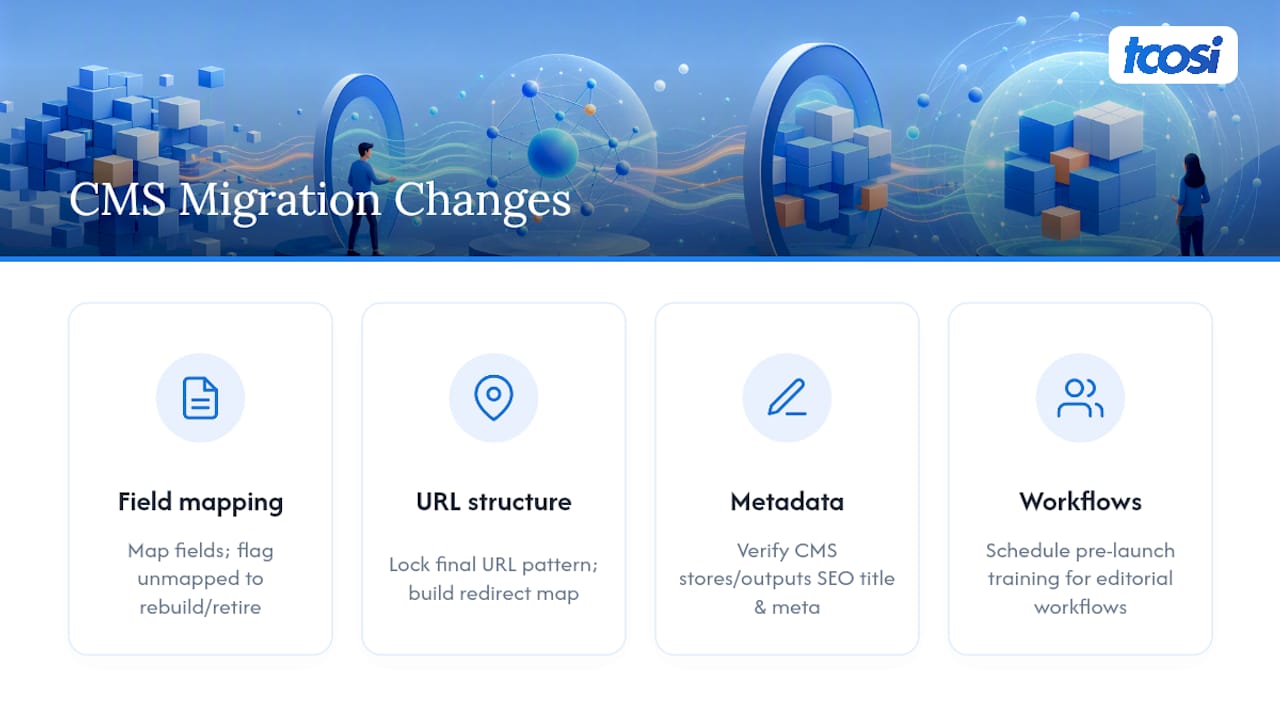
Field mapping is the first hurdle. Every CMS structures content differently: custom fields, taxonomies, and content types rarely translate one-to-one. Before you migrate a single page, map every custom field in your old system to its equivalent in the new one, and flag any field that has no equivalent so you can decide whether to rebuild it or retire the content it holds.
URL structure often changes by default between platforms, even when you don’t intend it to. Some CMS platforms generate URLs automatically based on category or date structures that differ from your old system’s pattern. Lock down your final URL structure early and build your redirect map against that, not against whatever the new CMS defaults to out of the box.
Metadata handling varies significantly too. Some platforms store SEO titles and meta descriptions as native fields; others require a plugin or custom field setup. Confirm before migration that your new platform can actually store and output the metadata your inventory calls for, or you’ll find yourself rebuilding SEO fields for hundreds of pages after the fact.
User permissions and workflows also shift. Editorial teams used to one CMS’s publishing workflow often need retraining on a new system’s approval process, media library, and revision history. Budget time for that training before launch, not during the first week your team can’t figure out how to publish a page.
How Do You Optimize Speed and Performance After Launch?
A new site or platform is the moment to fix performance problems, not just replicate the old ones. Run a fresh page speed audit against Core Web Vitals immediately after launch, comparing key templates (homepage, product pages, blog posts) against their pre-migration scores.
Server response time deserves particular attention if you’ve changed hosting as part of the move. A new host or server configuration can quietly change your Time to First Byte, for better or worse, and that number affects both user experience and search rankings. Test it under real conditions, not just an idle server with no traffic.
Image optimization often gets lost during migration, since media libraries frequently get re-uploaded without the compression settings your old CMS applied automatically. Check that your new platform is serving properly compressed, appropriately sized images, especially if the CMS switch changed how images get processed on upload.
Caching configuration needs a fresh look too. Old caching rules built for your previous platform rarely transfer cleanly. Set up new caching rules specific to the new environment rather than assuming the old settings still apply.
Run these checks about a week after launch, once traffic has stabilized, and again at the 30-day mark to confirm improvements are holding steady rather than degrading as real user traffic (not just test traffic) hits the new site.
Should You Run Your Migration In-House or Hire Help?
Large sites, ecommerce catalogs, and sites with substantial backlink profiles carry real risk if the internal team is stretched thin. A good agency engagement delivers a documented redirect map, staging QA, and a clean analytics handover. Some agencies handle exactly this kind of website redesign work for teams who’d rather not learn these lessons the hard way.
Get Your Migration Done Right the First Time
Every technical checklist in this guide assumes you have the time, the staff, and the staging environment to run it properly. Plenty of small business owners don’t, and that’s exactly the gap some agencies fill. Rather than piecing together a crawler, a redirect plugin, and a weekend of guesswork, you get a team that’s mapped redirects and QAed staging environments across multiple client launches.

Working with a professional agency on a migration means your redirect map gets documented and tested before launch, your staging site gets a full crawl and canonical check, and your analytics handover includes a clean baseline for comparing before and after. That’s the reduced-risk version of everything outlined above, done by someone who’s already run into the edge cases.
If your site is due for a platform change, a domain move, or a full redesign, start with tcosi’s website redesign playbook to see what a documented, tested migration actually looks like before you commit to a timeline.
Sources
- Website content migration plan (HubSpot)
- The Complete Website Migration Checklist SEO-Friendly (Semrush)
- Site migration SEO guide: preserve rankings & traffic (Search Engine Land)
- SEO website migration checklist (Pantheon)
FAQ
How Much Does It Cost to Migrate a Website?
Cost depends heavily on site size and complexity, ranging from a few hundred dollars for a small DIY move to several thousand for a professionally managed migration with full redirect mapping and QA on a larger or ecommerce site.
How Do You Do a Website Migration Without Losing Traffic?
Build a complete content inventory, map every URL to a permanent redirect, validate everything on staging before launch, and monitor Search Console and analytics closely for the first 30 to 90 days after going live.
What Are the Main Website Migration Strategies?
Common approaches include a same-platform redesign, a full replatform to a new CMS, a domain change, a URL-structure change, and combinations of these depending on whether you’re changing hosting, design, or content architecture at the same time.
How Do You Migrate a Website Without Losing SEO Rankings?
Preserve or improve metadata and internal linking, use 1:1 redirect mapping with permanent 301 redirects, validate canonical tags and structured data on staging, and keep both old and new sitemaps active during the transition period so Google can track the shift smoothly.
Do I Need an Agency to Migrate My Website?
Not always, but sites with heavy traffic, large backlink profiles, or ecommerce functionality benefit from professional help; some agencies handle the redirect mapping, staging QA, and analytics handover that in-house teams often lack time to do thoroughly.