Fix hosting and caching first, enable persistent object caching next, then migrate order storage to HPOS where your order volume justifies it. After that, tackle images, then assets and CDN delivery, then theme and plugin bloat, then set up monitoring so the gains stick. If you only do one thing today, enable server-level caching if your host supports it, or turn on a persistent object cache if it doesn’t.
TL;DR:
- Most WooCommerce stores need a host with PHP 8.2 or newer, OPcache enabled, MySQL 8 or MariaDB 10.6+, and at least 2GB of dedicated RAM to handle dynamic requests at scale.
- Enabling server-level caching like NGINX FastCGI, Varnish, or LiteSpeed Cache on catalog pages without caching checkout, cart, or account pages prevents serving stale or broken sessions.
- Implementing Redis or Memcached for persistent object caching reduces database query load, but misconfiguration or unsupported hosts can cause cache invalidation issues.
- Moving order data to high-performance order storage improves order processing speed but requires careful staged migration, testing, and maintaining dual sync for a full week afterward.
- Optimizing product images with WEBP or AVIF, proper srcset generation, and CDN delivery significantly lowers Largest Contentful Paint (LCP), often the main bottleneck for fast-loading product pages.
Table of Contents
- Fix Hosting and Caching for WooCommerce Performance Optimization
- What Does Persistent Object Caching Do for WooCommerce?
- Database Optimization and When to Migrate to HPOS
- How Do You Speed Up Product Image Loading?
- Reducing Render-Blocking CSS and JavaScript
- Should You Use a CDN for a WooCommerce Store?
- How to Audit Themes and Plugins for Performance Problems
- What Core Web Vitals Should You Monitor After Optimizing?
- Performance Impact of Cart and Checkout Customizations
- How tcosi Approaches WooCommerce Performance Projects
- Get Help With WooCommerce Performance Optimization
- Sources
- FAQ
Fix Hosting and Caching for WooCommerce Performance Optimization
Most WooCommerce performance optimization work fails before it starts, because the store is sitting on shared hosting that can’t handle dynamic PHP requests at scale. A WooCommerce store isn’t a static brochure site. Every cart update, every logged-in session, every AJAX call to check stock hits PHP and MySQL directly, so your hosting stack needs headroom most budget plans don’t offer.
Look for a host running PHP 8.2 or newer with OPcache enabled, MySQL 8 or MariaDB 10.6+, and at least 2GB of RAM dedicated to your site, more if you run over 5,000 products or see concurrent checkout traffic during sales. Under 1GB, you’ll see PHP workers queue up during traffic spikes, which shows up as slow “Add to Cart” clicks and timeout errors at checkout.
Once hosting is solid, layer in server-level caching options:
- NGINX FastCGI cache works well for high-traffic catalog pages and is lighter than a full reverse proxy.
- Varnish handles very high concurrency well but needs careful VCL rules to avoid caching dynamic content.
- LiteSpeed Cache (paired with LiteSpeed servers) bundles page caching, image optimization, and CSS/JS minification in one plugin.
Whichever you choose, cache catalog and product pages, but explicitly exclude Cart, Checkout, and My Account, following WooCommerce’s own performance guidance. Caching a checkout page serves stale nonces and broken sessions to real customers.
Verify it’s working by inspecting response headers (X-Cache: HIT or similar) in DevTools, then test both a logged-out visitor flow and a logged-in customer session to confirm dynamic pages aren’t being cached by mistake.
Pro Tip: Run a curl request with curl -I against a cart page in production. If you see cache headers on that response, your exclusion rules are broken, even if the homepage looks fast.
What Does Persistent Object Caching Do for WooCommerce?
Persistent object caching stores database query results outside of PHP’s request lifecycle, so the next visitor doesn’t force MySQL to run the same queries again. WordPress’s built-in WP_Object_Cache is non-persistent by default, meaning it clears at the end of every request. That’s nearly useless for a store where the same product, cart, and session queries repeat constantly.

Redis and Memcached are the two backends worth running. Both plug into WordPress through a drop-in file (object-cache.php) and a small wp-config.php addition pointing to your host address, and WordPress’s developer reference on WP_Object_Cache documents the supported backends and configuration caveats in detail. If your host doesn’t offer either, SQLite Object Cache is a workable fallback that still beats no persistent layer at all.
Watch for these common failure points:
- Flushing the entire cache group on every save, which erases the benefit
- Setting no expiration, so stale product or pricing data lingers after updates
- Skipping
wp_cache_supports()checks, which causes fatal errors on hosts with partial support
Stores that add Redis on top of existing page caching typically report checkout and catalog queries dropping from dozens of database calls to a handful, based on developer field reports rather than a single fixed number, so measure your own before-and-after with Query Monitor rather than assuming a universal figure.
Database Optimization and When to Migrate to HPOS
Database bloat is the quiet killer of WooCommerce speed. Years of order data, expired transients, and post revisions pile up in wp_postmeta until even simple product lookups slow down. Start with basic housekeeping: delete post revisions, purge expired transients, run OPTIMIZE TABLE on your largest tables, and add indexes on any custom meta keys you query often.
High-Performance Order Storage (HPOS) moves order data out of the generic posts table into dedicated order tables built for that job. WooCommerce’s own benchmarking found significantly faster order inserts and much faster indexed metadata lookups in tested scenarios, though results are operation-specific and depend on your query patterns.
For stores with meaningful order volume, follow WooCommerce’s staged migration guide for large stores:
- Enable HPOS compatibility mode with sync still active.
- Run
wp wc hpos syncon a staging copy first and time it. A migration of very large order volumes took about a week in documented tests. - Test checkout, payment gateways, and any custom order logic against the migrated tables.
- Progressively disable dual sync once you’ve verified data integrity.
- Monitor order creation and reporting for a full billing cycle before calling it done.
Before migrating, audit your codebase and plugins for direct postmeta or wp_posts writes on orders. WooCommerce’s HPOS recipe book recommends converting those to the CRUD API, since WooCommerce 10.7, shipping April 14, 2026, disables sync on read by default, which will break any custom code still reading orders the old way.
Pro Tip: Keep sync enabled for at least one full week after migrating live orders. If something breaks, you can roll back to the legacy tables without losing data.
How Do You Speed Up Product Image Loading?
Product images are usually the single largest contributor to a slow Largest Contentful Paint (LCP) on WooCommerce catalog and product pages. A gallery of five uncompressed JPEGs can easily add 3 to 4 megabytes to a single page load before a visitor even sees pricing.
Fix it with these concrete moves:
- Convert product images to WEBP or AVIF, with a JPEG fallback for older browsers.
- Generate a proper
srcsetso mobile visitors get a 400px image instead of the 2000px original. - Compress before upload when possible. Server-side tools add processing overhead on every page load if compression happens on the fly.
- Lazy-load below-the-fold images, but never lazy-load the main product image itself. That’s usually your LCP element, and lazy-loading it delays the exact metric you’re trying to improve.
- Use a CDN image service (Cloudflare Images, Imgix, or a similar transform layer) if you’re managing thousands of SKUs and can’t pre-generate every size manually.
A practical image optimization workflow for WordPress stores covers compression ratios and CDN delivery choices in more depth if you’re building this pipeline from scratch. After making changes, re-run Lighthouse and compare LCP before and after. A well-optimized product page should land its LCP element well inside the 2.5-second threshold.
Reducing Render-Blocking CSS and JavaScript
Every unused stylesheet and unminified script your theme or plugins load adds milliseconds to First Contentful Paint, and WooCommerce stores tend to accumulate a lot of both. Plugins for reviews, upsells, and payment gateways each ship their own CSS and JS, often on every page whether that page needs them or not.
Practical steps that move the needle:
- Extract critical CSS (the styles needed for above-the-fold content) and inline it, then load the rest asynchronously.
- Defer or async non-critical JavaScript, especially anything tied to below-the-fold widgets or third-party trackers.
- Use build-step bundlers like webpack or Rollup for your own custom theme code rather than relying on runtime concatenation, which adds server overhead on every request.
- Conditionally enqueue plugin scripts and styles so a checkout-only script doesn’t load on your blog posts.
Set a performance budget, for example a maximum JavaScript payload of 300KB on product pages, and treat any deploy that breaks it as a regression, not a minor tradeoff. WebPageTest’s waterfall view is particularly good at showing exactly which script is blocking the render.
Pro Tip: Query Monitor shows you which plugin enqueued a given script. If you find a review plugin loading its CSS on your checkout page, that’s an easy, safe win.
Should You Use a CDN for a WooCommerce Store?
Yes, once your product catalog or media library grows past a few hundred items, or you’re serving customers across multiple regions. A CDN moves static assets (images, CSS, JS, fonts) to edge servers near your visitor, cutting the round-trip latency that a single-origin server can’t avoid.
Look for a CDN with edge caching, on-the-fly image transforms, Brotli or gzip compression, and HTTP/2 or HTTP/3 support. Cloudflare, Bunny CDN, and Amazon CloudFront all cover that baseline.
Configuration matters as much as the choice itself:
- Set long cache lifetimes (30 days or more) on versioned static assets, since filenames change when content changes.
- Keep Cart, Checkout, and My Account routes off the CDN’s cached paths, since those need authenticated, request-specific responses.
- Confirm origin headers (
Cache-Control,Vary) are set correctly before turning on CDN caching, or you risk serving one customer’s session data to another. - Test purge behavior after a deploy. A CDN that doesn’t purge cleanly will serve your old CSS for hours after a release.
How to Audit Themes and Plugins for Performance Problems
A bloated theme or a handful of poorly coded plugins can undo every server-level fix you’ve made. The audit process is straightforward, but it has to be systematic, not a guess-and-check exercise.
- Install Query Monitor and load your slowest pages (usually the shop archive and single product pages). Look for queries taking over 50 milliseconds and note which plugin’s hook triggered them.
- Run New Relic or a similar APM tool in staging if you need transaction-level tracing across PHP execution, not just database queries.
- Use WP-CLI to check active plugin counts and flag anything abandoned or unmaintained:
wp plugin list --status=active. - Search your custom code and third-party plugins for direct
$wpdbcalls againstpostsorpostmetatied to orders, since these break under HPOS and need conversion to CRUD methods, per WooCommerce’s own performance best practices. - Deactivate suspect plugins one at a time on a staging copy and re-run Lighthouse after each, so you isolate exactly which plugin caused the regression.
A disciplined staging-first plugin management workflow makes this repeatable instead of a one-time fire drill every time the site slows down again.
What Core Web Vitals Should You Monitor After Optimizing?
Target an LCP of 2.5 seconds or under, an Interaction to Next Paint (INP) of 200 milliseconds or under, and a Cumulative Layout Shift (CLS) score under 0.1, the thresholds Web defines as “good.” These three metrics capture loading speed, responsiveness, and visual stability, which together determine whether a shopper actually completes checkout or bounces.
Combine two types of testing:
- Synthetic testing with Lighthouse CI or WebPageTest, run on every deploy, catches regressions before customers see them.
- Field monitoring through Chrome UX Report (CrUX) data or real-user monitoring (RUM) shows what actual visitors experience across different devices and connections, which lab tests can’t fully replicate.
Set a performance budget tied to these thresholds and fail the build if a deploy pushes LCP or CLS outside the “good” range. When monitoring flags a problem, prioritize by user impact first: a slow checkout page affects revenue directly, while a slow static policy page rarely does.
Performance Impact of Cart and Checkout Customizations
Custom checkout fields, upsell popups, and third-party payment plugins are some of the most common sources of WooCommerce slowdowns, precisely because developers add them without measuring the cost. Every extra field validation, every AJAX call to recalculate shipping, and every third-party script loaded on the checkout page adds latency at the exact moment a customer is most likely to abandon.
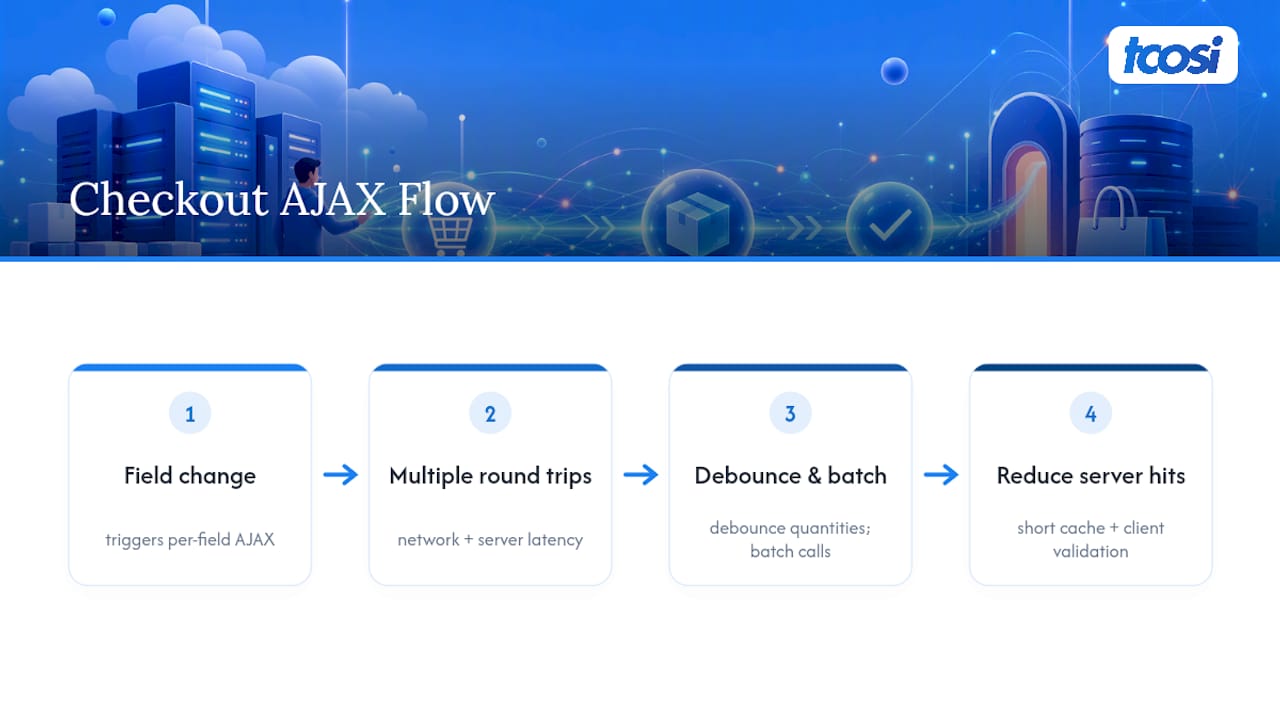
The biggest offender is usually AJAX chatter. A default WooCommerce cart page can trigger several AJAX requests just to update quantities or apply a coupon. Custom plugins that add real-time shipping calculators, live inventory checks, or dynamic pricing rules can push that number much higher, with each round trip adding network latency on top of server processing time.
To reduce that overhead, batch AJAX calls where possible instead of firing one request per field change, and debounce quantity updates so a customer typing “3” doesn’t trigger three separate server calls. Cache shipping rate calculations for a short window (a few minutes) rather than recalculating on every cart change, since shipping rates rarely change mid-session. Audit any checkout field plugin for unnecessary validation calls that hit the server instead of validating client-side first.
Also watch what scripts load on checkout specifically. A live chat widget, a marketing pixel, and an upsell popup script combined can add several hundred kilobytes to a page where speed matters most. Conditionally load checkout-specific scripts only on that page, and test the checkout flow with Lighthouse separately from your homepage score, since checkout performance directly affects completed sales in a way blog page speed never will.
How tcosi Approaches WooCommerce Performance Projects
I sequence every WooCommerce performance project the same way: hosting and caching first, persistent object cache second, HPOS migration third if the store’s order volume justifies it, then images, frontend assets, and monitoring last. Skipping ahead to plugin-level tweaks before the server layer is solid is the most common mistake I see, and it wastes hours chasing marginal gains while the real bottleneck sits untouched in the hosting stack.
For HPOS migrations specifically, I run the sync job on a staging copy first and time it before touching a production database. That timing tells you whether a migration window fits inside a maintenance night or needs to be scheduled across a slower sales period. I always keep dual sync active for a stretch after go-live, with a documented rollback path, because order data is the one place where “we’ll fix it later” isn’t an option.
The technical fixes matter, but so does explain why each one is worth doing, in terms a business owner without a development background can actually act on.
— Tommy Cosimano
Get Help With WooCommerce Performance Optimization
Most store owners don’t have time to profile queries, time an HPOS migration on staging, and rebuild a caching layer while still running a business. That’s the gap tcosi closes: a technical website audit that identifies exactly which of these fixes your store needs, in the order that actually moves your numbers, instead of a generic checklist applied blind.

If your store is already live and slowing down under order volume, a technical website audit is the right starting point. It covers hosting, caching, database health, and whether HPOS migration makes sense for your order volume, before any code changes happen. For stores that need ongoing attention rather than a one-time fix, the Ongoing Maintenance plan covers plugin and security management plus content updates, so performance work doesn’t quietly slip once the initial project wraps.
Agencies managing WooCommerce projects for their own clients can also route the technical heavy lifting through white-label WordPress development, keeping the client relationship in-house while tcosi handles the migration and optimization work behind the scenes.
Ready to see where your store stands? Reach out to start an audit and get a prioritized plan back before committing to any project scope.
Sources
- How to optimize performance for WooCommerce stores
- WP_Object_Cache — WordPress developer reference
- Defining Core Web Vitals thresholds
FAQ
How Do You Optimize WooCommerce for Speed?
Start with hosting and server-level caching, then add a persistent object cache like Redis, then optimize images and frontend assets, following WooCommerce’s own recommended sequence. Migrate to HPOS if your order volume is high enough to benefit, then set up ongoing monitoring so gains don’t erode over time.
Is the WP-Optimize Plugin Free?
WP-Optimize offers a free version that handles database cleanup, image compression, and basic caching, with a premium tier adding advanced features. It’s a reasonable starting point for database housekeeping, though it doesn’t replace server-level caching or a persistent object cache for a high-traffic store.
How Much RAM Does a WooCommerce Store Need?
A small WooCommerce store can run on 1 to 2GB of RAM, but stores with over 5,000 products or regular traffic spikes typically need at least 2 to 4GB to avoid PHP worker queuing during checkout rushes. The exact number depends on concurrent traffic and how many PHP workers your host allocates, so watch for timeout errors as your first warning sign.
Why Is My WooCommerce Store So Slow?
The most common causes are shared or underpowered hosting, no persistent object cache, bloated plugins loading scripts on every page, and unoptimized product images. A technical audit that profiles database queries with Query Monitor usually identifies the specific bottleneck within an hour, rather than requiring a guess-and-check approach across the whole stack.
Does Migrating to HPOS Actually Improve Speed?
Yes, for stores with meaningful order volume. WooCommerce’s own benchmarking found significantly faster order inserts and much faster indexed metadata lookups in tested scenarios, though results vary by query pattern and store size. Smaller stores with low order counts may not notice a meaningful difference.